Showing posts with label PIA. Show all posts

Monday, November 4, 2019

Setting Up the PeopleSoft Web Server for ODA

This post will describe the steps to setup the PeopleSoft web server for Oracle Digital Assistant (ODA) - Chatbots. This post will also go through some tips and tricks that are not covered in PeopleBooks (at the time of writing).

PeopleBook Reference: Setting Up the Web Server for the Chatbot

Creating a new 'external' site on the web server domain

This step should be pretty straight forward for a PS Admin. But for someone like me who does not have a lot of PS Admin background, it was a struggle to find the right information and create a new 'external' site on the PeopleSoft web server domain. Based on my experience creating this new site, I wrote a separate blog post to cover this topic and demystify some of the admin configuration and jargon.

Refer: Create new (external) site in a PUM Image

Note: This information is not in PeopleBooks but I was told that the new site can use the same web profile as the other existing site for regular PIA access. Since, my current environment is a HCM 9.2 - PI 31 created on OCI by PeopleSoft Cloud Manager, the delivered default site for the PIA is peoplesoft01 and it uses the delivered PROD web profile. So, I created my 'external' site using the PROD web profile using the procedure described in the blog post referenced above.

Copying the Web SDK (delivered ochatjs folder) to the new 'external' site

This step is also self explanatory. The one challenge I had was that my PUM image (HCM 9.2 - Image 31) was running on Oracle Cloud Infrastructure (OCI). I generally use WinSCP to perform file transfers, etc. to the servers. The default user 'opc' (Oracle Public Cloud) which we use to connect to OCI via WinSCP does not have the appropriate privileges to copy the Web SDK to the 'external' site.

Graham Smith, Oracle ACE Director, from Cedar Consulting UK showed me a neat trick to use WinSCP, login as the default user 'opc' and then switch to 'root'. I am forever thankful to him for this because it helps avoid the use of command line for such tasks.

How to use WinSCP to connect to PS Servers on OCI as root?

Use SCP Protocol, 'opc' user, set the private key in the authentication settings and use "sudo su -" in the SCP/Shell settings.


Copying the ochatjs folder (web SDK) to the external site

Source: ochatjs.zip file located in <%PS_APP_HOME%>/setup/chatbot

In my case, since I am using a HCM 9.2 - PI 31 running on OCI (created by PeopleSoft Cloud Manager), the ochatjs.zip was located here.

/u01/app/oracle/product/pt/ps_app_home/setup/

Destination: <PIA_HOME>\webserv\<DOMAIN_NAME>\application\peoplesoft\PORTAL.war\external\

In my case, since I am using a HCM 9.2 - PI 31 running on OCI (created by PeopleSoft Cloud Manager), the extracted ochatjs folder was placed here.

/u01/app/oracle/product/pt/ps_cfg_home/webserv/WEBSERVER01/applications/peoplesoft/PORTAL.war/external/

Verification

We can verify the success of the web SDK installation by accessing the following URL on a web browser.

https:\\<your server name>:port\external\ochatjs\loader.json


DIY PeopleSoft Chatbots

Chatbots are here in PeopleSoft! The PeopleSoft Chatbot Integration Framework was delivered via Enterprise Components in various Applications (HCM, FSCM, CS, etc.). Utilizing this framework, HCM delivered the 'Absence Assistant' Chatbot in PUM Image 31.

Using an Oracle Cloud trial account, I went through the exercise of spinning up a HCM 9.2 - PI 31 instance on Oracle Cloud Infrastructure (OCI) using PeopleSoft Cloud Manager, creating an Oracle Digital Assistant (ODA) instance on OCI, uploading the delivered 'Absence Assistant' Skill to ODA, configuring the ODA Skill/Channel to point to the HCM instance and likewise configuring the HCM instance to point to the ODA Skill/Channel!

Here is a demo of the 'Absence Assistant' Chatbot in action!


Hat Tip

I am very thankful to all Oracle PeopleSoft and ODA Product Managers, PeopleSoft Development team and PeopleSoft Support team for answering all my questions and pointing me in the right direction. Too many to list them all but they know who they are! Their insights are much appreciated.

Before you get started

Use HCM 9.2 PUM Image 32

If you are just getting started, I would highly recommend you to start with HCM 9.2 PUM Image 32. I started my proof of concept on PUM Image 31 and ran into several issues that were fixed in PI 32. Among other things, I had to pull out certain bugs (30151468, 30151584, 30150506) and the web SDK (ochatjs.zip) from PI 32 and apply them to my PI 31 instance. You will save yourself a lot of time simply by starting with PI 32!

Setup the <Proxy User> userid in PeopleSoft

Before we go any further, it would be a good idea to go ahead and setup the <Proxy User> userid in the HCM instance. This will be needed in the ODA Skill configuration.

PeopleBooks: Understanding Security for Chatbot Integration Framework

Configuration Steps - Blog Series

The following steps detail all the configurations that are necessary to setup the PeopleSoft - ODA Chatbot integration. This series of blogs address several practical tips, tricks and lessons learnt that might not be covered in PeopleBooks and other documentation.

Step 1: Setup PeopleSoft Web Server for ODA
Step 2: Setup the ODA instance on OCI
Step 3: Configure the delivered Skill in ODA
Step 4: Configure PeopleSoft to point to the Skill/Channel in ODA

Tuesday, October 29, 2019

Create new (external) site in a PUM image

This post will describe how we can create a new site in a PIA domain without modifying any existing configuration settings. As an example, we will focus on a delivered PUM image (HCM 9.2 PUM Image 29) installed as a VirtualBox instance.

If you are a PeopleSoft Administrator, then this might be second nature to you. But for others who only venture into the dark side occasionally, it might seem like a complex task.

Why?

Many of us download a PUM image (PI) and install it as a VirtualBox instance on our laptops/PCs to evaluate the latest features in the application releases or in some cases the PeopleTools releases.

Let us say we want to evaluate the latest features in the HCM 9.2 - External Candidate Gateway, FSCM 9.2 External Supplier Portal or even the latest HCM 9.2 - Absence Assistant Chatbot functionality. Unfortunately, the delivered PUM images do not contain these external sites by default, so in order to perform a true test, we might need to create a new (external) site in a PUM image and set it up appropriately.

How?

I am going to describe how I successfully created a new site in a PUM image (of course involving a lot of trial and error). I am sure there are more efficient ways to perform this task and I look forward to learning from your comments/feedback. I already know based on discussions with Dan from psadmin.io that we could also create a new site using DPK.

Anyway, after reviewing documentation in PeopleBooks, I found the following resources as a starting point.

Install Guides
PeopleSoft 9.2 Application Installation on Oracle (PeopleSoft PeopleTools 8.57)

"Task 15-1: Installing the PeopleSoft Pure Internet Architecture in Silent Mode" in the Installation Guide provides documentation on how to install various components of the PIA.

Based on this documentation, we can see that we simply need to update a response file with appropriate configuration settings and then kick off the command line to execute the site creation process "silently".

Updating resp_file.txt

"Task 15-1-1: Editing the Response File" mentions that this response file will be located here:
PS_HOME/setup/PsMpPIAInstall/scripts

But on a PUM image (HCM 9.2 - PI 29), I found it one level up.


I made a copy of this resp_file.txt and edited it to suit my needs.

External Site: ps_ext
Web Profile: KIOSK

Here is a copy of the resp_file.txt file that I used containing with only the parameters that are necessary.

Here are some items to keep in mind.

Where is the Weblogic Home directory?

I had no idea and could not find any documentation that pointed to this information. After some trial and error, I found that the Weblogic Home directory (at least on a PUM image) should be as follows.

BEA_HOME=/opt/oracle/psft/pt/bea

Note: If we use PeopleSoft Cloud Manager to create the PUM image instead of using the VirtualBox approach, then our Weblogic Home directory would be as follows.

BEA_HOME=/u01/app/oracle/product/pt/bea

Install action and Domain type

Use ADD_SITE and EXISTING DOMAIN as follows.

INSTALL_ACTION=ADD_SITE
DOMAIN_TYPE=EXISTING_DOMAIN


What is the App Server Name and JSL Port (particularly on a PUM image)?

I ended up accessing PS Admin (via Putty) and reviewing the configuration on the existing delivered site to pick up this information. The assumption here is that, the new site will also connect to the same App Server.

PeopleSoft PIA Administration > Web (PIA) Domain Administration > Administer a domain > peoplesoft (default domain for PUM image) >Administer a site > ps (existing delivered site) > Configure this site


We can use the Application Server Connect String as the PSSERVER parameter value as shown below.

PSSERVER=pi029.hcm92.edu:9033

Site Name and Web Profile

Provide the name for the new site as well the web profile that we want to use.

WEBSITE_NAME=ps_ext
WEB_PROF_NAME=KIOSK


Other items

The rest of the parameters in the resp_file.txt are either self explanatory or passwords.

Executing command line to create new site

Simply change the directory to the PsMpPIAInstall folder and execute the setup.sh script in silent mode passing in the resp_file.txt location as a parameter.


Demo

Delivered Site (ps) on PUM Image


New Custom/External Site (ps_ext)


Additional Resources

HCM9.2-CG: How To Configure The External Candidate Gateway URL On PUM16+ When The External Link Is Invalid (Doc ID 2145957.1)

Sunday, November 19, 2017

PeopleTools 8.56 Hidden Gem | HTMLAREA 'Respond Only Once' Property

While working on some quirks with reCAPTCHA implementation in a PeopleSoft PIA page, I stumbled on this scarcely documented, hidden gem in PeopleTools 8.56. For many years, we struggled with HTMLAREAs and how they behave with AJAX requests in PeopleSoft. Basically, HTMLAREAs get reloaded every time there is an AJAX request on the page which puts the responsibility on the developer to make sure any javascript code in the HTMLAREA continues to work as expected. Jim's post dating back to 2006 illustrates how long this has been a problem!

I ran into a similar problem with the reCAPTCHA implementation and I wrote additional javascript code to workaround the issue. In the process, I found this HTMLAREA page field property called 'Respond Only Once' which is new in PeopleTools 8.56. This property is not documented in PeopleBooks except for this one location as a related topic:
PeopleBooks - PeopleTools 8.56 - Field Class Properties

Based on what I found, this property when selected will exclude the HTMLAREA from AJAX requests. A total life saver! :)

Of course, the HTMLAREA will be included in the Save event (postback).

Demonstration of Problem

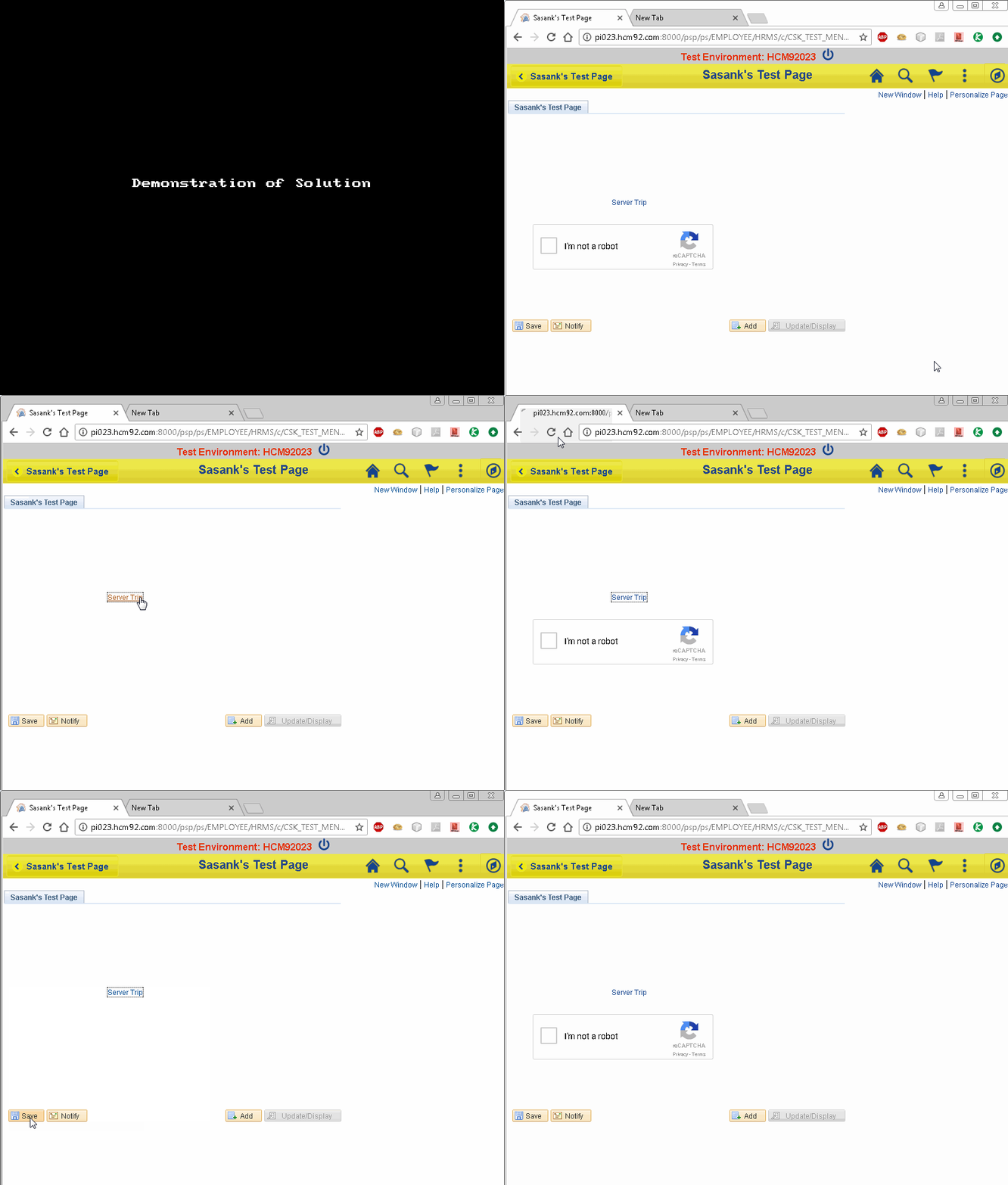
In this demo we can see how the reCAPTCHA plugin (as an example) which is generated by a HTMLAREA gets reloaded/refreshed on every AJAX requests. On the second server trip, the reCAPTCHA div will disappear because the reCAPTCHA API javascript is no longer loaded as expected.

HTMLAREA


Demo

We can see how the HTMLAREA is reloaded every server trip resulting the disappearance of the  reCAPTCHA plugin.


Respond Only Once Property

Let us set the 'Respond Only Once' property in the HTMLAREA.


Demo

In the following demo, we can see how the 'Respond Only Once' property helps to exclude the HTMLAREA from the AJAX requests and to avoid reloading its contents.


Saturday, November 18, 2017

reCAPTCHA in PeopleSoft PIA Pages

In one of my previous blog posts, I showed how to implement reCAPTCHA 2.0 in PeopleSoft. My blog post only covered setting up the reCAPTCHA plugin on the PeopleSoft login page as a workaround for DOS, bot attacks, etc. I also mentioned that the effort to implement reCAPTCHA in a PeopleSoft PIA page (Classic/Fluid) should be very similar. But I found that there is one challenge with implementing the same client side code in the PIA (as noted by some comments in the post). The issue is a common problem we routinely run into when we combine a HTMLAREA (with JavaScript) and a PIA page! Every time there is an event that posts back to the server, the entire page is refreshed. Obviously and unfortunately for us, this will cause the HTMLAREA to reload as well. If there is javascript in the HTMLAREA and if we are referencing external scripts (as we do in reCAPTCHA), there is a risk that the script will be reloaded and any variables may be reset. In order to workaround this problem, we need to be extra careful with writing javascript in HTMLAREA making sure we properly 'manage' how our code is executed during such events. This is true for all cases not specific to this reCAPTCHA implementation.

To demonstrate the problem, I added the reCAPTCHA plugin (client side) code to a Classic PIA Page using a HTMLAREA.

Classic Page


HTMLAREA and Page Activate PeopleCode

The HTMLAREA is populated dynamically using Page Activate PeopleCode.


JavaScript and HTML for reCAPTCHA

The javascript and HTML needed to display the reCAPTCHA plugin is stored in a HTML object (CSK_RECAPTCHA).


Result

We can see that the reCAPTCHA plugin is displayed successfully on the page.


Demonstration of Problem

Basically, on the second postback the reCAPTCHA API javascript will no longer load and therefore result in the reCAPTCHA div to disappear. In the demo, we can see the problem occurs during the FieldChange (Server Trip) and the Save events.


Solution

To solve this problem, instead of directly using the script element in the HTMLAREA to reference the reCAPTCHA API javascript, I wrote a javascript function to load the script in the DOM.

Result


reCAPTCHA Callback Function

You may notice that there is another function called svRecaptchaCallback and it is used as the data-callback attribute value in the reCAPTCHA div element. This callback function is a great feature that is available with reCAPTCHA which allows us to execute our custom code upon a successful reCAPTCHA event. You can see in the following demo that the message is printed on the console once we complete a successful reCAPTCHA verification. As an example, this could be used to conditionally activate/display certain page field elements only after a successful reCAPTCHA verification. Please note that this is purely on the client side. That is, the callback function is available and executed on the browser as part of our HTMLAREA. This is not the same as the server-side validation!


Notes

- Environment Details: HCM 9.2 PUM Image 23, PeopleTools 8.56.01.
- The main focus of this post is the client-side implementation. The server side validation logic can be implemented based on the code provided in my previous post. Only difference here is that we will be executing the PeopleCode in a event such as SavePreChange or similar instead of the SignOn PeopleCode event.
- The implementation in this post is done as a proof of concept only. When implementing reCAPTCHA in a PIA page, we may also want to consider only prompting the user with the reCAPTCHA validation once. Prompting the users to confirm that they are not robots on every Save event might not result in a great user experience.

Sample Project on GitHub

https://github.com/SasankVemana/reCAPTCHA-in-PIA