Showing posts with label Oracle JET. Show all posts

Sunday, August 27, 2017

PeopleTools 8.56 - Branding Review

PeopleTools 8.56 has been out for a few months now. This is a review of what is new in the Branding Framework pertaining to the 8.56 release.

Review Environment Details:

- HCM 9.2 PUM Image 23
- PeopleTools 8.56.01

Branding Framework:

Not much has changed with the Branding Framework. I was expecting some improvements to the Theme Macro Set functionality which was introduced in 8.55. There are still some hard-coded references to images in javascript which would have been nice to move to Theme Macro Set CSS functionality. For example:


The delivered macro set, PT_DEFAULT_MACROSET_855, still contains 117 macros (same as in 8.55) with no changes in 8.56.


As you can see, there is a new Color Picker on the Theme Macro Set page which is a nice productivity enhancing feature! This Color Picker is based on HTML5 'color' input type element.

Icon Changes:

A notable change that we have already seen in demos prior to the release is the new 'Action Menu' icon. This has changed from the old 'hamburger' menu to a 'pea' (?) menu. Graham Smith thinks this is a healthy dietary change! We cannot argue with that. :)


Using Theme Macro Sets:

Since the framework has not changed, it was pretty much the same set of steps to use Theme Macro Sets to override Branding elements. One thing to note is that we definitely want to clone the 8.56 objects (style sheets, headers, themes, etc.) instead of moving objects from an 8.55 environment. This will make sure that we have the most current versions of the object in question.

We can follow the steps detailed in my previous posts describing how to use Theme Macro Sets to override Branding Elements:
PeopleTools 8.55 Branding - Theme Macro Sets - Part 1
PeopleTools 8.55 Branding - Theme Macro Sets - Part 2

One of the issues I noticed was the position of the 'Pea' icon was a little off after applying the Theme Macro Set overrides. This issue occurred only on the Classic Pages. For example:


I fixed this by adding the following a top property to the #pthdr2ActionList:after style selector which is part of the Classic Theme Style Sheet.


Using Oracle JET:

I noticed that Oracle JET version 2.1.0 is available with PeopleTools 8.56. I found that the JavaScript Injection Framework that I built using Oracle JET in 8.55, works without any issues in 8.56 as well. Only thing to note is that, due to the version change, we may need to review the requireJS configuration to make sure the javascript library paths are pointing to the correct version.

Resources:

JavaScript Injection Framework
Framework is based on my experience with Oracle JET - Part 1, Part 2, Part 3 and Part 4
GitHub Project: https://github.com/SasankVemana/PeopleTools-JavaScript-Injection-Framework

Using Classic Plus:

I wanted to test the delivered Classic Plus pages that were available in this PUM image. But when I navigated to the Process Monitor page - which is in the list of PeopleTools Components delivered as Classic Plus - I was still seeing the good old Classic.


To activate Classic Plus, we must update the Branding System Options to use "Fluid like theme for Classic" as the "Theme Style Type". This is the system level setting that enables "Classic Plus".


Process Monitor after setting 'Theme Style Type'.


More information on Classic Plus:
PeopleBooks - Classic Plus

Related Branding Posts:

Fluid UI - New Window Feature - Workaround
Using Different Branding Themes for Different Portals
Using the Logo as a Hyperlink
Fluid Global Search - Setting Focus on the Search Box
Adding Userid to 'Sign out' Action Menu Item Label 

Sunday, August 20, 2017

Fluid UI - Responsive and Mobile-Friendly Tooltip


A good friend asked me if we can add a descriptive tooltip to Fluid UI elements. This reminded me that adding tooltips to page field elements has not been very straight forward with PeopleTools. In Classic, we had a few  options (there may be more):

1. Use the field class - HoverText property. This has many limitations - only works for push buttons or hyperlinks, maximum length of 100 characters, to name a few.
2. Use the page field property (use) - Mouse Over Popup settings. This again is limited to push buttons or hyperlinks. It also involves creating Popup page object.
3. Use application delivered Mouse Over Popup Pages. For example, HCM delivers some configuration that can be used for setting up mouse over popup fields.
4. Custom approach: http://peoplesoftdotnet.blogspot.com/2015/06/hovertext-in-to-edit-box.html

Needless to say, these options may not be very flexible to use with Fluid.

The good news is that in Fluid, we could use the HtmlAttributes field class property to add/update attributes to the page field element. This allows us to add/update the text attribute which is used to display the tooltip. Let us try this and see how it may work.

Test Environment Details:

Application: CS 9.2 PUM Image 4
PeopleTools Release: 8.55.12
Test Component/Page: AV_OUTR_SRCH_S_FL/AV_OUTR_SRCH_FL
Navigation: Fluid Home > Contributor Relations Homepage > Donor Prospects

Using HtmlAttribute to update the text attribute:

The page activate code for AV_OUTR_SRCH_FL page is written the following App Package Method:
App Package Class: AV_OUTR_FL.COMPONENTS.AV_OUTR_S_FL.OnExecute
Method: pageActivate


Let us add some custom code to update the text attribute for page field AV_SRCH_FLDS_WK.LAST_NAME_SRCH.


Delivered Tooltip on larger viewport:


Delivered Tooltip on smaller viewport:


With the hoverover text overflowing the smaller viewport, we can see that the tooltip is neither user-friendly nor responsive.

In a quest to find a user-friendly/responsive option, I stumbled on this resource:
https://osvaldas.info/elegant-css-and-jquery-tooltip-responsive-mobile-friendly
Demo: http://osvaldas.info/examples/elegant-css-and-jquery-tooltip-responsive-mobile-friendly/

The steps provided in Osvaldas's blog are very simple. We just need to load the CSS and javascript provided in the blog and then add the rel="tooltip" attribute to the target page field element. I wanted to take this idea and apply it to PeopleTools (using the above example).

Responsive and Mobile-Friendly Tooltip:

I updated the previous custom peoplecode and added the rel="tooltip" property. Further, I added a javascript object that is improvised on Osvaldas's code.


Custom Tooltip on larger viewport:


Custom Tooltip on smaller viewport:


Implementation Details:

I shared my code - which is based on the blog post by Osvaldo Valutis - on GitHub.
https://github.com/SasankVemana/Fluid-UI-Responsive-Tooltip

PeopleCode:

In the sample peoplecode provided above, you can see that along with the text attribute we have also added the rel="tooltip" attribute to the page field element using the HtmlAttributes property.

CSS:

I modified the CSS provided in Osvaldo's blog to update the tooltip text and background colors. You can make additional modifications if necessary based on your requirement. Create a Free-Form Style Sheet object in App Designer using the CSS (CSK_TOOLTIP_CSS) in the GitHub project.

JavaScript:

I extended the javascript provided in Osvaldo's blog to wrap the code in a require block to facilitate the loading of jQuery using requireJS - which I have detailed in the past as part of a javascript injection framework. You could use an alternate approach for the javascript injection but you need to make sure that jQuery is loaded prior to execution of this javascript. Additionally, this javascript also takes care of loading the CSS (CSK_TOOLTIP_CSS) using helper functions - again part of the javascript injection framework. Create a JavaScript (HTML) object in App Designer using the javascript (CSK_TOOLTIP_JS) in the GitHub project.

Saturday, September 10, 2016

Fluid UI - Using Oracle JET - UI Components - Visualizations - Status Meter Gauge

While exploring the use of Oracle JET to enhance the UI capabilities of PeopleSoft Fluid, we saw how we could employ basic responsive layout/styling (Alta UI css) and data binding (KnockoutJS) functionality.

Based on what we learned so far, does it appear like PeopleTools natively (via App Designer) support Oracle JET? Probably not. But are there enough built-in functions/tools/workarounds to integrate Oracle JET with Fluid UI? Yes, yes and yes!

In this post, I will demonstrate how we can integrate an Oracle JET - Visualization Component (Status Meter Gauge) in a Fluid page to enrich the UI (more than what we could normally achieve within the confines of App Designer). By the way, this post is inspired by the Oracle JET MOOC - Lesson 2 - Part 2: Data Visualization Components. I highly recommend watching the video to get an understanding of the Status Meter Gauge. We will try to replicate the following behavior demonstrated on an Oracle JET QuickStart Template website (see oj Module section in the below animation).


Development Environment: HCM 9.2 PUM Image 17 - PeopleTools 8.55.03

Assumptions: For the purposes of this demo, it is assumed that the latest version of Oracle JET is installed on the web server.

Step 1: Add Oracle JET paths to requireJS configuration

If we work with the Oracle JET QuickStart Template (especially using NetBeans), we will realize that the entire framework to develop and run Oracle JET applications is pre-configured for us. So there is not much we have to do other than plug and play the modules, components, etc.

As part of the pre-configured framework, the requireJS config for the QuickStart Template can be found in the main.js:


Because we are trying to wire this into the PeopleSoft architecture, we need to make sure the Oracle JET related libraries are added to the requireJS path configuration. So, let us update our global requireJS configuration to include the following Oracle JET paths.

        'knockout': cskBowerCompsPath+'/knockout/dist/knockout',
        'ojs':cskBowerCompsPath+'/oraclejet/dist/js/libs/oj/debug',
        'ojL10n':cskBowerCompsPath+'/oraclejet/dist/js/libs/oj/ojL10n',
        'ojtranslations':cskBowerCompsPath+'/oraclejet/dist/js/libs/oj/resources',
        'promise':cskBowerCompsPath+'/es6-promise/promise.min',
        'ojdnd':cskBowerCompsPath+'/oraclejet/dist/js/libs/dnd-polyfill/dnd-polyfill-1.0.0.min',
        'jqueryui-amd':cskBowerCompsPath+'/jquery-ui/ui/minified',
        'signals':cskBowerCompsPath+'/js-signals/dist/signals.min'

For complete javascript code, please refer jsFiddle link: CSK_REQUIRE_CFG_JS

Note:

- The library paths for Oracle JET (installed using bower or direct download) might not be the same as what we normally find in the Oracle JET QuickStart Template. Please make sure the paths are referenced appropriately.
- For more details on using requireJS refer: PeopleTools 8.55+ - Using Oracle JET (JQuery, JQueryUI, requireJS and more): Part 1, Part 2, Part 3, Part 4

Step 2: Create a Fluid Page

Let us create a simple Fluid page - CSK_OJ_GAUGE_DEMO - using PSL_APPS_CONTENT layout. And add a couple of group boxes for creating a flex layout (oj-flex and oj-flex-item). Adding the flex layout is optional but you can refer to Fluid UI - Oracle JET - Using Oracle Alta UI and Flex Layouts for more details.

Further, let us add the following page field elements:

Group Box (Layout Only to group page field elements):


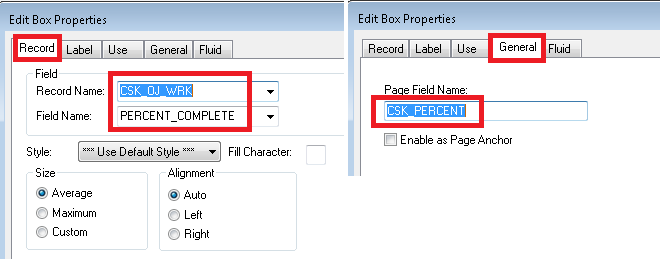
Edit Box (Input Field):

This field will represent the 'Sales Percentage' input element for our demonstration.


Group Box (Layout Only placeholder for the ojStatusMeterGauge component):

This is just a placeholder group box to generate the DIV where we will eventually add the ojStatusMeterGauge "View" data-bind attributes. Notice the 'Override PeopleTools Style?' is selected? This is to ensure that none of the delivered styles will interfere with this element.


Push Button (To Send Gauge/Input value back to PeopleSoft):

The reason why we have this push button here is to demonstrate how Oracle JET integrates with the PeopleSoft architecture (PIA). We will evaluate how certain events on the page ("View") might possibly disturb (mutate) the knockout bindings and how we can work around those issues.

Note: There may be more efficient ways (than the methods described) to workaround these quirks and I would be happy to hear from others on this topic! Please feel free to leave a comment.


Step 3: Add the ojStatusMeterGauge related data binding to the View (Page HTML)

As shown in the MOOC lesson, we will be using the div on line 252 from this Oracle JET - Cookbook - HTML code for the Status Meter Gauge. Let us adjust the attribute values slightly (to give an appropriate custom value (cskValue) for the data-bind and to update the style margin to work effectively on our Fluid page).

HTML: ojStatusMeterGauge Component DIV


Now, we need to apply the data-bind and style attributes from the above sample DIV to the gauge-container group box on our Fluid page.We can do that with the following Page Activate PeopleCode. While we are at it, we can also add the data-bind attribute to the edit box (input field). This is specifically to establish a two way data-bind between the gauge and the input field.


PeopleCode For Reference:

Declare Function SetViewport PeopleCode PTLAYOUT.FUNCLIB FieldFormula;

/* Set ViewPort Meta for SFF Scaling */
SetViewport("width=device-width,user-scalable=yes,initial-scale=1.0,minimum-scale=1.0"); /* apply the system default viewport setting */

/* Setting the data-binds in the "View" */
CSK_OJ_WRK.GROUPBOX.HtmlAttributes = "data-bind=""ojComponent: {component: 'ojStatusMeterGauge', min: 0, max: 100, value: cskValue, orientation: 'circular', plotArea: {rendered: 'on'}, metricLabel: {rendered: 'on'}, title: {text: 'Sales'}, readOnly: false}"" style=""margin: 5px auto; height:100px; width:45%;""";
CSK_OJ_WRK.PERCENT_COMPLETE.HtmlAttributes = "data-bind=""value: cskValue""";


Step 4: Apply Knockout Bindings to the ViewModel

Let us update the PageActivate PeopleCode to include a javascript object (CSK_OJ_GAUGE_MAIN_JS) on page load. This javascript will serve the same purpose as a traditional 'main.js' in the javascript/Oracle JET architecture.


JavaScript: CSK_OJ_GAUGE_INIT_JS


The reason I introduced this new javascript object (CSK_OJ_GAUGE_INIT_JS) is because if we create global variables in the CSK_OJ_GAUGE_MAIN_JS which is loaded as an AddOnLoadScript, the variables would not persist and appear as undefined subsequently. As a workaround, CSK_OJ_GAUGE_INIT_JS was created and loaded using the AddJavaScript function instead of AddOnLoadScript function - prior to the execution of our main.

JavaScript: CSK_OJ_GAUGE_MAIN_JS


- As you can see, we added the requireJS configuration path to the "ViewModel" javascript in the main (CSK_OJ_GAUGE_MAIN_JS), instead of using the global requireJS configuration in Step 1 (while setting up Oracle JET paths). This is because we do not want this app (page) specific path to clutter our global requireJS configuration.
- In the require block, we injected the Alta css to enable the oj-flex and oj-flex-item styling that we used in Step 2.
- Then, the Knockout bindings are applied to the "ViewModel" which resides in CSK_OJ_GAUGE_VIEWMODEL_JS.
- The cskOJKORefresh function was created to take care of page events that might require a server trip (e.g.: Clicking on 'Send To Server' button would trigger the FieldChange event). Since PeopleSoft automatically reloads the page field element(s) on every server trip, we will find that the Knockout data-bindings are lost when such events are triggered. For more details on this quirk, click here.

Step 5: Create ViewModel JavaScript Object - CSK_OJ_GAUGE_VIEWMODEL_JS

JavaScript: CSK_OJ_GAUGE_VIEWMODEL_JS


- The define block for the ViewModel includes all the Oracle JET libraries that are dependencies (including knockout) for ojgauge.
- The subscribe function on cskValue calls the delivered addchg_%formname function to take care of a PeopleSoft quirk once again. After a server trip, if we don't highlight/activate the edit box (input field) and simply use the gauge to modify the value, then the new value will not get propagated to the server subsequently via the component buffer (input field). This function tricks/forces the component buffer to notice the change in the input field value. For more details on this quirk, click here.

Step 6: Create the FieldChange PeopleCode Event

This code will take care of handling the 'Send To Server' push button event.


- The FieldChange event on the server side simply returns a confirmation message with the value it received for the Sales Percentage.
- Additionally, the cskOJKORefresh javascript function is invoked as part of this PeopleCode event to take care of the quirk mentioned in Step 4 (part of CSK_OJ_GAUGE_MAIN_JS).

Results:

Presto! We can see that the user can now interact with the gauge/input field in several ways:
- Directly with the input field (keyboard - numbers)
- Using the keyboard arrow keys to increment/decrement the value
- Using the mouse (or touch) to slide the gauge value


Demo of Quirks:

Why do we need cskOJKORefresh function in CSK_OJ_GAUGE_MAIN_JS?

This function is invoked every time the 'Send To Server' FieldChange event is triggered to take care of following data-binding issue after a server trip.


Why do we need to the addchg_%formname function invoked in the ViewModel?

After a server trip, if the input field is not highlighted and if we try to use the gauge to alter the value and send back to server, the change will not be propagated to the component buffer.


Reference Links:

Fluid UI - Oracle JET - Using Oracle Alta UI and Flex Layouts
Fluid UI - Oracle JET - Using KnockoutJS for Data Binding - Demo
PeopleTools 8.55+ - Using Oracle JET (JQuery, JQueryUI, requireJS and more): Part 1, Part 2, Part 3, Part 4

Tuesday, September 6, 2016

Fluid UI - Oracle JET - Using KnockoutJS for Data Binding - Demo

Continuing on my experimentation with Oracle JET in Fluid UI, I will demo how we can use KnockoutJS available as part of Oracle JET for data binding. This demonstration is based on the following Oracle JET MOOC - Lesson 1, Part 4: Data Binding.

Development Environment: HCM 9.2 PUM Image 17 - PeopleTools 8.55.03

Step 1: Create a Fluid Page

Let us create a simple Fluid page - CSK_KO_DATA_BIND - using PSL_APPS_CONTENT layout. And add a couple of group boxes for creating a flex layout (oj-flex and oj-flex-item). Adding the flex layout is optional but you can refer to Fluid UI - Oracle JET - Using Oracle Alta UI and Flex Layouts for more details.

Further, let us add the following page field elements (group box, edit box - input field and edit box - display only):


Group Box Properties:


Edit Box (Input Field):


Edit Box (Display Only):


Step 2: Add KnockoutJS path to requireJS configuration

Next, we need to update our global requireJS configuration to include the path for knockout.


For complete javascript code, refer jsFiddle link: CSK_REQUIRE_CFG_JS

For more details on using requireJS refer:PeopleTools 8.55+ - Using Oracle JET (JQuery, JQueryUI, requireJS and more) - Part 1, Part 2, Part 3, Part 4.

Step 3: Add data binding to the View (Page HTML)

In our infrastructure (PeopleSoft - Pure Internet Architecture), the "View" is the page (CSK_KO_DATA_BIND) which generates the HTML. As a next step, we can write some PageActivate PeopleCode to add the data-bind attributes to the Fluid page fields using the Field Class HtmlAttributes property.


PeopleCode for Reference:
/* Setting the data-binds in the "View" */
CSK_OJ_WRK.DESCR1.HtmlAttributes = "data-bind='value: userText'";
CSK_OJ_WRK.DESCR2.HtmlAttributes = "data-bind='value: userTextCaps'";


Step 4: Apply the KnockOut Bindings to the ViewModel

Let us update the PageActivate PeopleCode to include a javascript object (CSK_KO_MAIN_JS) on page load. This javascript will serve the same purpose as a traditional 'main.js' in the javascript/Oracle JET architecture.


JavaScript: CSK_KO_MAIN_JS


- As you can see, we added the requireJS configuration path to the "ViewModel" javascript in the main (CSK_KO_MAIN_JS), instead of using the global requireJS configuration in Step 2 (while setting up Knockout JS path). This is because we do not want this app (page) specific path to clutter our global requireJS configuration.
- In the require block, we injected the Alta CSS to enable the oj-flex and oj-flex-item styling that we used in Step 1.
- Finally, the Knockout binding is applied to the "ViewModel" which resides in CSK_KO_VIEWMODEL_JS.

Step 5: Create ViewModel JavaScript Object - CSK_KO_VIEWMODEL_JS

JavaScript: CSK_KO_VIEWMODEL_JS


The ViewModel has the define block as described in the Oracle JET MOOC lesson example.

Results:


Monday, September 5, 2016

Fluid UI - Oracle JET - Using Oracle Alta UI and Flex Layouts

In my previous posts, I showed how we could use Oracle JET with PeopleTools (and client side javascript) to take advantage of some robust solutions for file loading and modularity. Since I started attending the Oracle JET MOOC, I wanted to see if we could leverage Oracle JET for enhancing the UI in PeopleTools Fluid. Why would we want to do that? Well, why not? Oracle JET has a very well documented CookBook and pre-built UI components, so we could just plug and play the UI functionality to Fluid (without reinventing the wheel). Sounds good in theory! Let us see how we could use Oracle Alta UI and Flex Layout (part of CSS3) in Fluid as a starting exercise.

Development Environment: HCM 9.2 PUM Image 17 - PeopleTools 8.55.03

Step 1: Install the latest version of Oracle JET

As I have shown in the past already, Oracle JET is available on the web server starting with PeopleTools 8.55. This is great for using requireJS, jQuery and other libraries (that are part of Oracle JET), but if we want to venture into the UI layer, it is better to install the latest version of Oracle JET to take advantage of the newer capabilities (since the delivered version - at least as of PeopeTools 8.55.06 - is still referencing a much older release).

I used bower to automatically download, install and place the latest version of Oracle JET onto my bower_components folder - which is mounted on my web server. For more details on how to use bower, please refer - Using Bower to manage javascript packages in PeopleSoft Applications.

Oracle JET Installation:


Oracle JET 2.1.0 on the web server (bower components):


Note: You don't necessarily have to use bower for placing Oracle JET on the web server. You could use other options that might be convenient and accessible to you.

Step 2: Create a simple Fluid Page using PSL_APPS_CONTENT Layout Page

There is nothing fancy about this page (at least as of now). It is basically empty right now.

Fluid Page Object - App Designer:


Fluid Page:


Step 3: Inject Alta UI CSS to the Fluid Page

I am using the Page Activate PeopleCode event to execute an OnLoad javascript which will take care of loading the Alta UI CSS file located on the web server (Oracle JET directory).


JavaScript: CSK_OJ_LOAD_CSS


You can see that I am adding the oj-alta-notag-min.css instead of oj-alta-min.css. This is to avoid conflicting with some of the other basic PeopleSoft styles. For more details review - Understanding Oracle JET Theming For Compatibility.

Note: For more details on the cskLoadCSS function, refer PeopleTools 8.55+ - Using Oracle JET (JQuery, JQueryUI, requireJS and more) - Part 3.

Result:

We can now see the oj-alta-notag-min.css file injected to the head when 'oj Layout' page is loaded.


Step 4: Use Flex Layout in Fluid

Now that we completed all the logistics, we are ready to start using the 'Flex Layout' in Fluid.

Let us add a few group boxes to the Fluid page that would provide us a mechanism to add 'Layout Only DIVs' to the page which would in turn allow us to use the Oracle JET - Flex Layout styles.


oj-flex Group Box Properties:

You can see that in the Group Box Properties, I have set the 'Override PeopleTools Style?' to Yes. This is required specifically for these type of cases where we use CSS from external libraries. Otherwise, there will be some undesired PeopleTools styles automatically added to this DIV. Also, we need to make sure that we set the Group Box Type to 'Layout Only' and Html Tag Type to 'DIV'. The Default Style Name (oj-flex oj-sm-only-flex-direction-column) was directly copied from this lesson: Oracle JET MOOC: Lesson 1, Part 10 - Oracle JET Layouts - I recommend reviewing this video to get a good understanding of Alta UI and Flex Layouts.


oj-flex-item Group Box Properties:

Default Style Name: oj-panel oj-margin oj-flex-item


Results:

Let us now see this in action and also compare it with the same Flex layout implemented in an Oracle JET QuickStart Template.

Watch Demo Here: Oracle JET QuickStart Template Demo

Watch Demo Here: Fluid UI - Flex Layout Implementation

Step 5: Adding Fluid Elements to the Flex Items

What is the benefit of all these steps? We are using a well documented, stable set of responsive styles and UI components delivered by Oracle JET instead of developing them from scratch or trying to find appropriate Fluid styles (which is not very easy!). Now, let us employ this in a more realistic use case. Let us add some Fluid elements (input fields) to the Flex Items.


Group Box Properties:


Input Field (Edit Box) Properties:


Note: I repeated the same elements in the other two flex items.

Results:

Watch demo here: Fluid UI - Flex Layout Implementation with Input Fields