This is a continuation of my previous post
where I detailed some of the new Branding features and configuration
options available in PeopleTools 8.55. This post is intended to provide
guidelines for accomplishing some common Branding tasks in PeopleTools
8.55. You will notice that majority of the tasks would only require
simple configuration changes as opposed to making customizations or even writing many custom styles (Branding - Part 5A
- describes the steps involved in Branding Fluid applications in
PeopleTools 8.54). There are also reference links on the following tasks to compare with the effort involved in 8.54. This might be quite lengthy but hopefully you will find the steps useful!
Changing the Header Background Color:
NavBar > Navigator > PeopleTools > Portal > Branding > Theme Macro Set
Select the custom Theme Macro Set to override PT_BANNER_BACKGROUND_IMAGE macro with an appropriate linear-gradient.

Results:


Steps in 8.54: Click here.
Changing the Hover Over and Active Background Color for the Home, Notifications and Action Menu Icons:
NavBar > Navigator > PeopleTools > Portal > Branding > Theme Macro Set
Select the custom Theme Macro Set and override the following macros:
PT_BANNER_BUTTON_BACKGROUND_COLOR_ACTIVE
PT_BANNER_BUTTON_BOXSHADOW
PT_BANNER_BUTTON_BOXSHADOW_ACTIVE
PT_BANNER_BUTTON_TRUE_BG_COLOR_HOVER
PT_BANNER_BUTTON_TRUE_BXSHADOW_ACTIVE
PT_BANNER_BUTTON_TRUE_BXSHADOW_HOVER
Note: In my case, I set the box shadow color to be the same since I did not need a box shadow. You can adjust these macros as per your requirements.

Results:


Steps in 8.54: Click here.
Changing the Background and Hover Over Color for the NavBar Icon:
NavBar > Navigator > PeopleTools > Portal > Branding > Theme Macro Set
Select the custom Theme Macro Set and override the following macros:
PT_BANNER_NAVBAR_BACKGROUND_ACTIVE
PT_BANNER_NAVBAR_BACKGROUND_HOVER
PT_BANNER_NAVBAR_BACKGROUND_IMAGE
PT_BANNER_NAVBAR_BOXSHADOW

Results:


Steps in 8.54: Click here.
Changing the Left Border for the NavBar Icon:
NavBar > Navigator > PeopleTools > Portal > Branding > Theme Macro Set
Select the custom Theme Macro Set and override the following macros:
PT_BANNER_NAVBAR_SIDE_BORDER_COLOR

Results:

Steps in 8.54: Click here.
Changing the Background Color of the Fluid Landing Page - Tile Area:
NavBar > Navigator > PeopleTools > Portal > Branding > Theme Macro Set
Select the custom Theme Macro Set and override the following macros:
PT_HOMEPAGE_BACKGROUND

Results:

Steps in 8.54: Click here.
Changing the Branding Header - Bottom Border:
NavBar > Navigator > PeopleTools > Portal > Branding > Theme Macro Set
Select the custom Theme Macro Set and override the following macros:
PT_BANNER_BORDER_COLOR
PT_HOMEPAGE_BANNER_BORDER_COLOR


Results:


Steps in 8.54: Click here.
Changing the Fluid Homepage Title Selector Text Color:
NavBar > Navigator > PeopleTools > Portal > Branding > Theme Macro Set
Select the custom Theme Macro Set and override the following macros:
PT_HOMEPAGE_TITLE_SELECTOR_TEXT_COLOR

Results:

Steps in 8.54: Click here.
Changing the Background Color on the Fluid Landing Page Footer:
NavBar > Navigator > PeopleTools > Portal > Branding > Theme Macro Set
Select the custom Theme Macro Set and override the following macros:
PT_HOMEPAGE_FOOTER_BACKGROUND

Results:

Steps in 8.54: Click here.
Changing the Icons on the Header and Footer:
Let us use the following custom images for overriding the delivered icons:
Home: PT_HEADER_HOME > CSK_HEADER_HOME
Notification: PT_HEADER_ALERTS > CSK_HEADER_ALERTS
Search: PT_HEADER_SEARCH > CSK_HEADER_SEARCH
Actions List: PT_HEADER_ACTIONS > CSK_HEADER_ACTIONS
NavBar: PT_HEADER_NAVBAR > CSK_HEADER_NAVBAR
Homepage Selection Drop-Down: PTNUI_DOWN_ARW > CSK_NUI_DOWN_ARW
Refresh: PTNUI_REFRESH_ICN > CSK_NUI_REFRESH_ICN

NavBar > Navigator > PeopleTools > Portal > Branding > Theme Macro Set
Select the custom Theme Macro Set and override the following macros:
PT_BANNER_HOME_IMAGE
PT_BANNER_NOTIFY_IMAGE
PT_BANNER_SEARCH_IMAGE
PT_BANNER_ACTIONLIST_IMAGE
PT_BANNER_NAVBAR_IMAGE
PT_TITLE_SELECTOR_IMAGE
PT_HOMEPAGE_REFRESH_IMAGE


Results:


Steps in 8.54: Click here.
Changing the color of the Content Page Title Text:
NavBar > Navigator > PeopleTools > Portal > Branding > Theme Macro Set
Select the custom Theme Macro Set and override the following macros:
PT_BANNER_TEXT_COLOR

Results:
Note: This change only works for Fluid Page and does not override the Classic Page Titles.


To update the title text color on Classic pages, make the following style sheet overrides using the custom Classic - Theme Style Sheet - CSK_BRAND_CLASSIC_TEMPL_FLUID (Click here for more details).
NavBar > Navigator > PeopleTools > Portal > Branding > Branding Objects
Edit CSK_BRAND_CLASSIC_TEMPL_FLUID and set color to rgba(29,65,140, 0.95) for pthdr2pagetitle selector.

Results:

Steps in 8.54: Click here.
Changing the Icon and Styling on the 'Back' Button:
NavBar > Navigator > PeopleTools > Portal > Branding > Theme Macro Set
Select the custom Theme Macro Set and override the following macros:
PT_BANNER_BACK_BACKGROUND_COLOR_ACTIVE
PT_BANNER_BACK_BACKGROUND_COLOR_HOVER
PT_BANNER_BACK_BACKGROUND_IMAGE
PT_BANNER_BACK_BACKGROUND_IMAGE_ACTIVE
PT_BANNER_BACK_BACKGROUND_IMAGE_HOVER
PT_BANNER_BACK_BORDER_BOTTOM_COLOR
PT_BANNER_BACK_BORDER_BOTTOM_COLOR_HOVER
PT_BANNER_BACK_BORDER_COLOR
PT_BANNER_BACK_BORDER_COLOR_HOVER
PT_BANNER_BACK_BOXSHADOW
PT_BANNER_BACK_BOXSHADOW_ACTIVE
PT_BANNER_BACK_BOXSHADOW_HOVER
PT_BANNER_BACK_IMAGE
PT_BANNER_BACK_TEXT_COLOR
PT_BANNER_BACK_TEXT_COLOR_HOVER
PT_BANNER_BACK_TEXT_COLOR_ACTIVE

Note: You may also need to adjust other PT_BANNER_BACK* macros depending on your custom styles.
Results:

Steps in 8.54: Click here.
Changing the color of the new Notification Badge:
This seems to be a new feature of PeopleTools 8.55 and I don't recall seeing this in 8.54.

NavBar > Navigator > PeopleTools > Portal > Branding > Theme Macro Set
Select the custom Theme Macro Set and override the following macros:
PT_BANNER_BUTTON_BADGE_BORDER_COLOR
PT_BANNER_BUTTON_BADGE_TEXT_COLOR

Results:

Changing the Dot Styling on the Fluid Landing Page Footer:
Unfortunately, this style override is not yet supported as part of the macros. So, we need to fall back to the previous method of overriding the styles.
NavBar > Navigator > PeopleTools > Portal > Branding > Branding Objects
Edit the custom Fluid - Global Override Style Sheet (CSK_BRAND_FLUID_TEMPLATE) and include the following style at the very end of the style sheet.
.lpfooter .dot.on {
background: #EEEB4D;
}
.lpfooter .dot {
background: #E8E29E;
border: 2px solid #1d418c;
}

Results:

Steps in 8.54: Click here.
In the next post, I intend to cover some more advanced branding tasks including steps to create custom marcos using the Branding Theme Macro Sets framework.
Changing the Header Background Color:
NavBar > Navigator > PeopleTools > Portal > Branding > Theme Macro Set
Select the custom Theme Macro Set to override PT_BANNER_BACKGROUND_IMAGE macro with an appropriate linear-gradient.

Results:


Steps in 8.54: Click here.
Changing the Hover Over and Active Background Color for the Home, Notifications and Action Menu Icons:
NavBar > Navigator > PeopleTools > Portal > Branding > Theme Macro Set
Select the custom Theme Macro Set and override the following macros:
PT_BANNER_BUTTON_BACKGROUND_COLOR_ACTIVE
PT_BANNER_BUTTON_BOXSHADOW
PT_BANNER_BUTTON_BOXSHADOW_ACTIVE
PT_BANNER_BUTTON_TRUE_BG_COLOR_HOVER
PT_BANNER_BUTTON_TRUE_BXSHADOW_ACTIVE
PT_BANNER_BUTTON_TRUE_BXSHADOW_HOVER
Note: In my case, I set the box shadow color to be the same since I did not need a box shadow. You can adjust these macros as per your requirements.

Results:


Steps in 8.54: Click here.
Changing the Background and Hover Over Color for the NavBar Icon:
NavBar > Navigator > PeopleTools > Portal > Branding > Theme Macro Set
Select the custom Theme Macro Set and override the following macros:
PT_BANNER_NAVBAR_BACKGROUND_ACTIVE
PT_BANNER_NAVBAR_BACKGROUND_HOVER
PT_BANNER_NAVBAR_BACKGROUND_IMAGE
PT_BANNER_NAVBAR_BOXSHADOW

Results:


Steps in 8.54: Click here.
Changing the Left Border for the NavBar Icon:
NavBar > Navigator > PeopleTools > Portal > Branding > Theme Macro Set
Select the custom Theme Macro Set and override the following macros:
PT_BANNER_NAVBAR_SIDE_BORDER_COLOR

Results:

Steps in 8.54: Click here.
Changing the Background Color of the Fluid Landing Page - Tile Area:
NavBar > Navigator > PeopleTools > Portal > Branding > Theme Macro Set
Select the custom Theme Macro Set and override the following macros:
PT_HOMEPAGE_BACKGROUND

Results:

Steps in 8.54: Click here.
Changing the Branding Header - Bottom Border:
NavBar > Navigator > PeopleTools > Portal > Branding > Theme Macro Set
Select the custom Theme Macro Set and override the following macros:
PT_BANNER_BORDER_COLOR
PT_HOMEPAGE_BANNER_BORDER_COLOR


Results:


Steps in 8.54: Click here.
Changing the Fluid Homepage Title Selector Text Color:
NavBar > Navigator > PeopleTools > Portal > Branding > Theme Macro Set
Select the custom Theme Macro Set and override the following macros:
PT_HOMEPAGE_TITLE_SELECTOR_TEXT_COLOR

Results:

Steps in 8.54: Click here.
Changing the Background Color on the Fluid Landing Page Footer:
NavBar > Navigator > PeopleTools > Portal > Branding > Theme Macro Set
Select the custom Theme Macro Set and override the following macros:
PT_HOMEPAGE_FOOTER_BACKGROUND

Results:

Steps in 8.54: Click here.
Changing the Icons on the Header and Footer:
Let us use the following custom images for overriding the delivered icons:
Home: PT_HEADER_HOME > CSK_HEADER_HOME
Notification: PT_HEADER_ALERTS > CSK_HEADER_ALERTS
Search: PT_HEADER_SEARCH > CSK_HEADER_SEARCH
Actions List: PT_HEADER_ACTIONS > CSK_HEADER_ACTIONS
NavBar: PT_HEADER_NAVBAR > CSK_HEADER_NAVBAR
Homepage Selection Drop-Down: PTNUI_DOWN_ARW > CSK_NUI_DOWN_ARW
Refresh: PTNUI_REFRESH_ICN > CSK_NUI_REFRESH_ICN

NavBar > Navigator > PeopleTools > Portal > Branding > Theme Macro Set
Select the custom Theme Macro Set and override the following macros:
PT_BANNER_HOME_IMAGE
PT_BANNER_NOTIFY_IMAGE
PT_BANNER_SEARCH_IMAGE
PT_BANNER_ACTIONLIST_IMAGE
PT_BANNER_NAVBAR_IMAGE
PT_TITLE_SELECTOR_IMAGE
PT_HOMEPAGE_REFRESH_IMAGE


Results:
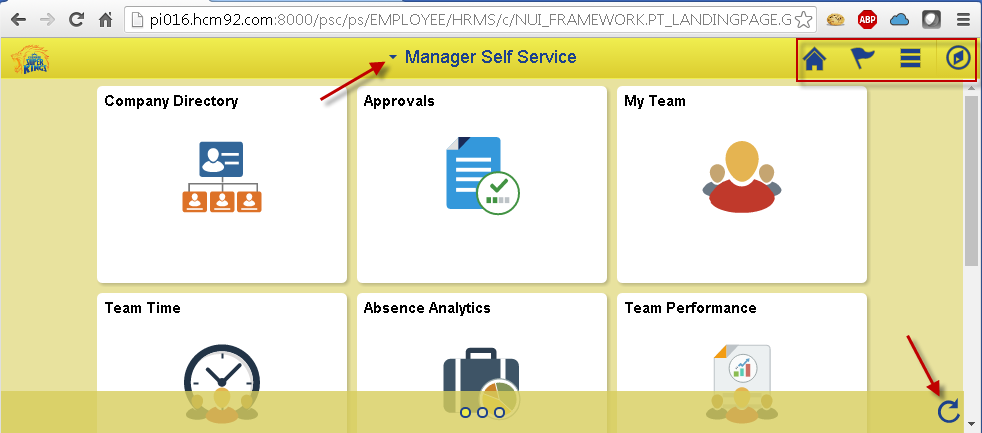

Steps in 8.54: Click here.
Changing the color of the Content Page Title Text:
NavBar > Navigator > PeopleTools > Portal > Branding > Theme Macro Set
Select the custom Theme Macro Set and override the following macros:
PT_BANNER_TEXT_COLOR

Results:
Note: This change only works for Fluid Page and does not override the Classic Page Titles.


To update the title text color on Classic pages, make the following style sheet overrides using the custom Classic - Theme Style Sheet - CSK_BRAND_CLASSIC_TEMPL_FLUID (Click here for more details).
NavBar > Navigator > PeopleTools > Portal > Branding > Branding Objects
Edit CSK_BRAND_CLASSIC_TEMPL_FLUID and set color to rgba(29,65,140, 0.95) for pthdr2pagetitle selector.

Results:

Steps in 8.54: Click here.
Changing the Icon and Styling on the 'Back' Button:
NavBar > Navigator > PeopleTools > Portal > Branding > Theme Macro Set
Select the custom Theme Macro Set and override the following macros:
PT_BANNER_BACK_BACKGROUND_COLOR_ACTIVE
PT_BANNER_BACK_BACKGROUND_COLOR_HOVER
PT_BANNER_BACK_BACKGROUND_IMAGE
PT_BANNER_BACK_BACKGROUND_IMAGE_ACTIVE
PT_BANNER_BACK_BACKGROUND_IMAGE_HOVER
PT_BANNER_BACK_BORDER_BOTTOM_COLOR
PT_BANNER_BACK_BORDER_BOTTOM_COLOR_HOVER
PT_BANNER_BACK_BORDER_COLOR
PT_BANNER_BACK_BORDER_COLOR_HOVER
PT_BANNER_BACK_BOXSHADOW
PT_BANNER_BACK_BOXSHADOW_ACTIVE
PT_BANNER_BACK_BOXSHADOW_HOVER
PT_BANNER_BACK_IMAGE
PT_BANNER_BACK_TEXT_COLOR
PT_BANNER_BACK_TEXT_COLOR_HOVER
PT_BANNER_BACK_TEXT_COLOR_ACTIVE

Note: You may also need to adjust other PT_BANNER_BACK* macros depending on your custom styles.
Results:

Steps in 8.54: Click here.
Changing the color of the new Notification Badge:
This seems to be a new feature of PeopleTools 8.55 and I don't recall seeing this in 8.54.

NavBar > Navigator > PeopleTools > Portal > Branding > Theme Macro Set
Select the custom Theme Macro Set and override the following macros:
PT_BANNER_BUTTON_BADGE_BORDER_COLOR
PT_BANNER_BUTTON_BADGE_TEXT_COLOR

Results:

Changing the Dot Styling on the Fluid Landing Page Footer:
Unfortunately, this style override is not yet supported as part of the macros. So, we need to fall back to the previous method of overriding the styles.
NavBar > Navigator > PeopleTools > Portal > Branding > Branding Objects
Edit the custom Fluid - Global Override Style Sheet (CSK_BRAND_FLUID_TEMPLATE) and include the following style at the very end of the style sheet.
.lpfooter .dot.on {
background: #EEEB4D;
}
.lpfooter .dot {
background: #E8E29E;
border: 2px solid #1d418c;
}

Results:

Steps in 8.54: Click here.
In the next post, I intend to cover some more advanced branding tasks including steps to create custom marcos using the Branding Theme Macro Sets framework.
