Showing posts with label Style Sheet. Show all posts

Monday, August 12, 2019

Fluid UI - Working with Grids - Part 4 - Styling Stacked Grids

There were some interesting requirements posted by a reader in the following blog post.

Refer: Fluid UI - Working with Grids

Requirement 1: How to align the elements in a column to 'top' in a Stacked Grid

Let us say, we have a two Stacked columns with different number of elements/fields in each Stack as shown in example - Responsive Flex Grid with 2 Columns. As we can see in the screenshot below, the first Stacked column contains 3 fields and the second Stacked column contains 2 fields.


Since the second Stacked column only contains 2 fields and they are centered from a vertical position point of view, they don't line up with the fields in the first Stacked column.

If we want to align the fields in the second Stacked column to the top, we can achieve that with the following CSS.

I really like the nth-child() CSS3 selector. The idea is to only apply the CSS to a particular child element and not all. In our case, I only wanted to apply the CSS to the second column <td> element with "ps_grid-cell" class as shown below.


You can find more details on the nth-child() selector in the following blog post.

https://support.awesome-table.com/hc/en-us/articles/115001393209-Add-style-to-specific-columns-or-rows-in-your-Table-view

Note: The CSS provided above is added to the page using the following Page Activate PeopleCode.


Requirement 2: How to align specific fields (elements) in a Stacked Column to the Right

Let us say, we want to right justify specific fields in a Stacked Column. For example, we want to right justify the EFF_STATUS field.


We can achieve this by simply identifying the the id value (or part of it) and apply a wildcard CSS selector that contains this value as shown in the following CSS.

The wildcard for the id is required in this case due to the window and grid row numbering that is prefixed and suffixed to the record field name to generate the id value.


Requirement 3: How to align a specific Stacked Column to the Right

Let us extend the previous requirement and say that we want to align the entire second Stacked column (including the Label) to the right.


We can simply achieve this by using the following updated CSS:

Result

Project Details

All examples in this blog post were built on the project provided in Fluid UI - Working with Grids.

Monday, April 17, 2017

Fluid UI - Tile Wizard API - Part 3 - Dynamic Tile Style

This is a continuation of the Fluid UI - Tile Wizard API series: Part 1 and Part 2. In this part, we will explore the Tile Wizard API further to dynamically style tiles and more importantly find an option to target specific tiles to apply custom style classes.

In the past (refer Fluid UI - Styling Tiles - Part 1 and Part 2), I wrote about the challenges with the way the id attribute is auto-generated in the tile html (div elements).

E.g.: In the screenshot below, the div element for the 'Financial Account' Tile in the Student Homepage has an id attribute value of win0divPTNUI_LAND_REC_GROUPLET$2.


The number 2 in the id attribute value denotes that it is the third (starting with 0) tile on the Homepage. This auto numbered id value is still unique enough to target the elements under this div and apply custom styles using css selectors (e.g.: make the 'Financial Account' tile title appear in red color, etc.). But this assumes that the end users or even the administrators will not change the order of the tiles either via Personalizations or via administrative pages (structure and content). If such events occur, then it would be a bit complex to apply a style class targeted to a specific tile. This was the main reason I created an Idea on My Oracle Support to request this ability as a PeopleTools enhancement.

With this background, I got really excited when I saw that we could potentially use the Tile Wizard API for applying targeted styles to a tile using the TileID and the TileSpecificStyleSheet properties of the Tile Wizard Class.

Environment Details:
- CS 9.2
- PUM Image 4
- PeopleTools 8.55.12

TileID Property Quirk:

But first, I found some quirky behavior with the TileID property. When I tried to set the TileID for the custom tile 'My Team' which I created in Part 2, it did not really update the id attribute on any of the elements that are part of the Tile. Instead the value was added to the class of the Tile Content area. This appears to be a bug from my understanding. If you are finding different results then please leave a comment with your experience!

PeopleCode:


We can see that the id attribute of the tile - where we would have expected the update - is still unchanged, whereas strangely the value is added to the class of the Tile Content area. Bug?

Using the TileSpecificStyleSheet Property:

While it is evident with the name of this property that it is specific to a tile, it does not necessarily mean that it will only be applied to the target tile. Basically, the style sheet is added to the response which may or may not be specific to the target tile depending on the style class selectors in the style sheet.

Let us say we added a custom style sheet to the 'My Team' tile using the TileSpecificStyleSheet property.


Scenario 1:

Let us add the following style to the freeform style sheet to set a different color to the Tile Title.

SV_TILE_CSS Style Sheet:


Results:

We can see that all the tiles on the homepage are affected by this style class. This is because the style class does not have any targeted css selectors and therefore will be applied to all tiles on the homepage.


Scenario 2:

Let us add another style - this time specifically targeting the 'My Team' tile using css selectors - to change the color of the Live Data text.

SV_TILE_CSS Style Sheet:


Results:


Overall, while there are workarounds, it would be great if the TileID property works as expected (perhaps in the future releases of PeopleTools?) which would allow us to easily write custom style classes to accurately and effectively target specific tiles.

Wednesday, April 20, 2016

PeopleTools 8.55.x - Branding - Part III - Custom Macros and More

In my previous blog posts, we saw how we can brand PeopleSoft applications which are on PeopleTools 8.55 using the new Theme Macro Sets functionality (Part I and Part II). The Theme Macro Sets provides a great way to override targeted styles (e.g.: Header Logo, Icon images, background colors, etc.) using online configuration. The delivered Them Macro Set contains 177 macros which targets specific styles for some common Branding tasks.

Creating Custom Macros:

The concept and functionality of the Macro Set are great, but what if the 177 macros that are available do not meet our requirements? In Part II, I demonstrated how we can fall back to using the Theme - Fluid Global Override Style Sheet under such circumstances. In this section, I will detail how we can still bring those custom style sheet overrides into the Theme Macro Set as custom macros. Once we create the macros, we don't need to update the style sheet anymore. All we need to do is update the macros if there are any further changes (I guess making it a little user friendly depending on who is making the changes). This is particularly useful for customers who have a more dynamic branding which changes frequently depending on the time of the year vs being static after implementation.

Macros in Theme Macro Sets are nothing but variables used in the Theme - Fluid Global Override Style Sheet which are substituted at runtime.

Going back to my example in Part II, we used the following styles in the Theme - Fluid Global Override Style Sheet for changing the Dot Styling on the Fluid Landing Page Footer:

.lpfooter .dot.on {
  background: #EEEB4D;
}
.lpfooter .dot {
  background: #E8E29E;
  border: 2px solid #1d418c;
}

Let us re-write the above styles using custom variables (macros).

NavBar > Navigator > PeopleTools > Portal > Branding > Branding Objects

Edit the custom Fluid - Global Override Style Sheet (CSK_BRAND_FLUID_TEMPLATE) and update the styles as follows:

.lpfooter .dot.on {
  %CSK_FOOTER_DOT_ON_CSS;
}
.lpfooter .dot {
  %CSK_FOOTER_DOT_CSS;
}


Now, let us add these macros (variables) to our Theme Macro Set:

NavBar > Navigator > PeopleTools > Portal > Branding > Theme Macro Set

Select the custom Theme Macro Set and add the custom variables in the 'Macro List' grid:


Results:


Similarly, we can add other Fluid Style Sheet overrides as custom macro definitions if necessary.

Moving along, the rest of this blog details some advanced branding tasks which can be done in PT 8.55 similar to PT 8.54. I am posting links for those items here for continuity.

Creating an environment specific header for Non-Production databases:

Fluid Housekeeping Steps: Fluid Branding - 8.54 - Part 5B
Task steps: Fluid Branding - 8.54 - Part 5C

We will notice that the above steps would only work for the "Fluid" pages. To make it work on "Classic" pages, we need to perform some additional steps.

Step 1: Update the javascript to modify the jQuery selectors

// Display Database Name using jQuery once the document is ready;

var $jq1 = jQuery.noConflict();

$jq1(document).ready(function(){

   // Make sure we are only adding the div once;
   if ( $jq1("#cskdbnamecontainer").length === 0 ) {

      // Add div to display DB Name;
      $jq1( "#PT_HEADER, #ptbr_header_container").prepend( "<div id='cskdbnamecontainer' align='center'><span id='cskdbname'>Test Environment: %dbname</span><a href='#' id='cskdbnamehide'>Hide</a></div>" );

      // Add jQuery to hide the DB Name when the 'Hide' link is clicked;
      $jq1("#cskdbnamehide").click(function(){
         $jq1("#cskdbnamecontainer").hide();
      });

   }

});


You can see that I added an additional selector (#ptbr_header_container) to the jQuery so that the contained javascript code executes for Classic as well.

Step 2: Inject custom styles into Classic - Theme Style Sheet

NavBar > Navigator > PeopleTools > Portal > Branding > Branding Objects

Append the following styles to CSK_BRAND_CLASSIC_TEMPL_FLUID


Custom styles for reference:

/* Fluid - Display DBName for non-Prod environments */
#cskdbnamecontainer {
   height: 26px; 
   background-color: rgb(204,204,204);
}
#cskdbname {
   color: rgba(229,47,0,1);
   line-height: 26px;
   font-weight: bold;
   padding-right: 10px;
}


Step 3: Inject the custom javascript into Classic using Branding System Options

NavBar > Navigator > PeopleTools > Portal > Branding > Branding System Options


Results:


Adding Custom Links to Actions List Menu:

Fluid  Branding - 8.54 - Part 5C

Again, we will notice that the above steps would only work for the "Fluid" pages. In order to add custom links on "Classic" pages, we need to perform some additional steps to update the header definition (CSK_HEADER_FLUID).

NavBar > Navigator > PeopleTools > Portal > Branding > Define Headers and Footers


Note: The reason I am using a Static URL as the means to add the custom URL is because the URL object option does not seem to substitute the URL correctly. It appears to be a bug in 8.55.

Results:


Overriding the Favorite Icon:

Fluid Branding - 8.54 - Part 5C

Again, this will only work for "Fluid" pages.

Here are the steps to create a Favorite Icon for Classic Pages:

Step 1: Update custom javascript - CSK_FL_IR_JS

NavBar > Navigator > PeopleTools > Portal > Branding > Branding Objects

Update CSK_FL_IR_JS javascript object as follows:


Javascript for reference:

// Get Image URL for CSK_LOGO (FavIcon);
document.write(unescape("%3Cscript src='/psc/" + site + "/EMPLOYEE/EMPL/s/WEBLIB_FL_CSK.ISCRIPT1.FieldFormula.IScript_Set_Image_URL_Variable?var=cskFavIcon&img=CSK_LOGO_FAVICON' type='text/javascript'%3E%3C/script%3E"));

var $jq = jQuery.noConflict();
$jq(document).ready(function(){

  // If Classic;
  if ( $jq("#ptbr_header_container").length > 0) {

     // create div for favIcon
     var favIcon = document.createElement("LINK");

     // set attributes and innerHTML
     favIcon.setAttribute("rel","shortcut icon");
     favIcon.setAttribute("href", cskFavIcon);

     // insert favIcon div in the head element
     document.getElementsByTagName('head')[0].appendChild(favIcon);

  } else {

 
     // Replace Browser Favorite Icon(s);
     $jq('head link[href*=LOGO_FAVICON]').attr('href', cskFavIcon);
 
  }

});


Results:


Overriding the "Processing" Icon:

PT_PROCESSING_FMODE:


Fluid Branding - 8.54 - Part 5D

Monday, April 18, 2016

PeopleTools 8.55.x - Branding - Part II

This is a continuation of my previous post where I detailed some of the new Branding features and configuration options available in PeopleTools 8.55. This post is intended to provide guidelines for accomplishing some common Branding tasks in PeopleTools 8.55. You will notice that majority of the tasks would only require simple configuration changes as opposed to making customizations or even writing many custom styles (Branding - Part 5A - describes the steps involved in Branding Fluid applications in PeopleTools 8.54). There are also reference links on the following tasks to compare with the effort involved in 8.54. This might be quite lengthy but hopefully you will find the steps useful!

Changing the Header Background Color:

NavBar > Navigator > PeopleTools > Portal > Branding > Theme Macro Set

Select the custom Theme Macro Set to override PT_BANNER_BACKGROUND_IMAGE macro with an appropriate linear-gradient.


Results:


Steps in 8.54: Click here.

Changing the Hover Over and Active Background Color for the Home, Notifications and Action Menu Icons:

NavBar > Navigator > PeopleTools > Portal > Branding > Theme Macro Set

Select the custom Theme Macro Set and override the following macros:
PT_BANNER_BUTTON_BACKGROUND_COLOR_ACTIVE
PT_BANNER_BUTTON_BOXSHADOW
PT_BANNER_BUTTON_BOXSHADOW_ACTIVE
PT_BANNER_BUTTON_TRUE_BG_COLOR_HOVER
PT_BANNER_BUTTON_TRUE_BXSHADOW_ACTIVE
PT_BANNER_BUTTON_TRUE_BXSHADOW_HOVER

Note: In my case, I set the box shadow color to be the same since I did not need a box shadow. You can adjust these macros as per your requirements.


Results:


Steps in 8.54: Click here.

Changing the Background and Hover Over Color for the NavBar Icon:

NavBar > Navigator > PeopleTools > Portal > Branding > Theme Macro Set

Select the custom Theme Macro Set and override the following macros:
PT_BANNER_NAVBAR_BACKGROUND_ACTIVE
PT_BANNER_NAVBAR_BACKGROUND_HOVER
PT_BANNER_NAVBAR_BACKGROUND_IMAGE
PT_BANNER_NAVBAR_BOXSHADOW


Results:


Steps in 8.54: Click here.

Changing the Left Border for the NavBar Icon:

NavBar > Navigator > PeopleTools > Portal > Branding > Theme Macro Set

Select the custom Theme Macro Set and override the following macros:
PT_BANNER_NAVBAR_SIDE_BORDER_COLOR


Results:


Steps in 8.54: Click here.

Changing the Background Color of the Fluid Landing Page - Tile Area:

NavBar > Navigator > PeopleTools > Portal > Branding > Theme Macro Set

Select the custom Theme Macro Set and override the following macros:
PT_HOMEPAGE_BACKGROUND


Results:


Steps in 8.54: Click here.

Changing the Branding Header - Bottom Border:

NavBar > Navigator > PeopleTools > Portal > Branding > Theme Macro Set

Select the custom Theme Macro Set and override the following macros:
PT_BANNER_BORDER_COLOR
PT_HOMEPAGE_BANNER_BORDER_COLOR


Results:


Steps in 8.54: Click here.

Changing the Fluid Homepage Title Selector Text Color:

NavBar > Navigator > PeopleTools > Portal > Branding > Theme Macro Set

Select the custom Theme Macro Set and override the following macros:
PT_HOMEPAGE_TITLE_SELECTOR_TEXT_COLOR


Results:


Steps in 8.54: Click here.

Changing the Background Color on the Fluid Landing Page Footer:

NavBar > Navigator > PeopleTools > Portal > Branding > Theme Macro Set

Select the custom Theme Macro Set and override the following macros:
PT_HOMEPAGE_FOOTER_BACKGROUND


Results:


Steps in 8.54: Click here.

Changing the Icons on the Header and Footer:

Let us use the following custom images for overriding the delivered icons:

Home: PT_HEADER_HOME > CSK_HEADER_HOME
Notification: PT_HEADER_ALERTS > CSK_HEADER_ALERTS
Search: PT_HEADER_SEARCH > CSK_HEADER_SEARCH
Actions List: PT_HEADER_ACTIONS > CSK_HEADER_ACTIONS
NavBar: PT_HEADER_NAVBAR > CSK_HEADER_NAVBAR
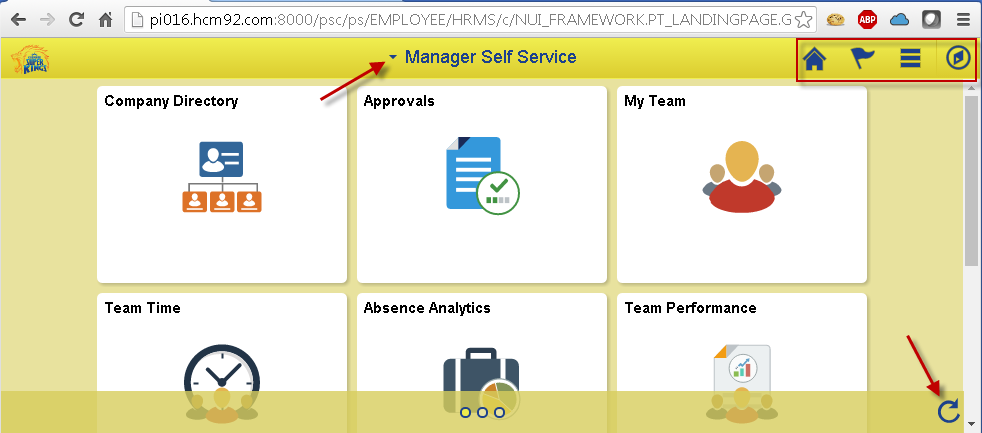
Homepage Selection Drop-Down: PTNUI_DOWN_ARW > CSK_NUI_DOWN_ARW
Refresh: PTNUI_REFRESH_ICN > CSK_NUI_REFRESH_ICN


NavBar > Navigator > PeopleTools > Portal > Branding > Theme Macro Set

Select the custom Theme Macro Set and override the following macros:
PT_BANNER_HOME_IMAGE
PT_BANNER_NOTIFY_IMAGE
PT_BANNER_SEARCH_IMAGE
PT_BANNER_ACTIONLIST_IMAGE
PT_BANNER_NAVBAR_IMAGE
PT_TITLE_SELECTOR_IMAGE
PT_HOMEPAGE_REFRESH_IMAGE


Results:


Steps in 8.54: Click here.

Changing the color of the Content Page Title Text:

NavBar > Navigator > PeopleTools > Portal > Branding > Theme Macro Set

Select the custom Theme Macro Set and override the following macros:
PT_BANNER_TEXT_COLOR


Results:

Note: This change only works for Fluid Page and does not override the Classic Page Titles.


To update the title text color on Classic pages, make the following style sheet overrides using the custom Classic - Theme Style Sheet - CSK_BRAND_CLASSIC_TEMPL_FLUID (Click here for more details).

NavBar > Navigator > PeopleTools > Portal > Branding > Branding Objects

Edit CSK_BRAND_CLASSIC_TEMPL_FLUID and set color to rgba(29,65,140, 0.95) for pthdr2pagetitle selector.


Results:


Steps in 8.54: Click here.

Changing the Icon and Styling on the 'Back' Button:

NavBar > Navigator > PeopleTools > Portal > Branding > Theme Macro Set

Select the custom Theme Macro Set and override the following macros:
PT_BANNER_BACK_BACKGROUND_COLOR_ACTIVE
PT_BANNER_BACK_BACKGROUND_COLOR_HOVER
PT_BANNER_BACK_BACKGROUND_IMAGE
PT_BANNER_BACK_BACKGROUND_IMAGE_ACTIVE
PT_BANNER_BACK_BACKGROUND_IMAGE_HOVER
PT_BANNER_BACK_BORDER_BOTTOM_COLOR
PT_BANNER_BACK_BORDER_BOTTOM_COLOR_HOVER
PT_BANNER_BACK_BORDER_COLOR
PT_BANNER_BACK_BORDER_COLOR_HOVER
PT_BANNER_BACK_BOXSHADOW
PT_BANNER_BACK_BOXSHADOW_ACTIVE
PT_BANNER_BACK_BOXSHADOW_HOVER
PT_BANNER_BACK_IMAGE
PT_BANNER_BACK_TEXT_COLOR
PT_BANNER_BACK_TEXT_COLOR_HOVER
PT_BANNER_BACK_TEXT_COLOR_ACTIVE


Note: You may also need to adjust other PT_BANNER_BACK* macros depending on your custom styles.

Results:


Steps in 8.54: Click here.

Changing  the color of the new Notification Badge:

This seems to be a new feature of PeopleTools 8.55 and I don't recall seeing this in 8.54.


NavBar > Navigator > PeopleTools > Portal > Branding > Theme Macro Set

Select the custom Theme Macro Set and override the following macros:
PT_BANNER_BUTTON_BADGE_BORDER_COLOR
PT_BANNER_BUTTON_BADGE_TEXT_COLOR


Results:


Changing the Dot Styling on the Fluid Landing Page Footer:

Unfortunately, this style override is not yet supported as part of the macros. So, we need to fall back to the previous method of overriding the styles.

NavBar > Navigator > PeopleTools > Portal > Branding > Branding Objects

Edit the custom Fluid - Global Override Style Sheet (CSK_BRAND_FLUID_TEMPLATE) and include the following style at the very end of the style sheet.

.lpfooter .dot.on {
  background: #EEEB4D;
}
.lpfooter .dot {
  background: #E8E29E;
  border: 2px solid #1d418c;
}


Results:


Steps in 8.54: Click here.

In the next post, I intend to cover some more advanced branding tasks including steps to create custom marcos using the Branding Theme Macro Sets framework.