Showing posts with label Event Mapping Framework. Show all posts

Sunday, February 21, 2021

Event Mapping on Fluid Homepage

I regularly get questions on how we can make changes to Tiles on the Homepage dynamically:

  • Display/hide Tiles based on certain conditions
  • Use different Tile title/content based on certain conditions
  • And so on...

And every time I struggle to remember and find this reference to an old Oracle community discussion:
https://community.oracle.com/tech/apps-infra/discussion/4052095/hide-fluid-tile-from-a-homepage

Just to avoid searching for this again, I am sharing/documenting this link on my blog. 😇

On this thread, Divesh Gupta shared an idea to use Event Mapping on the Fluid Homepage to dynamically display/hide Tiles.
Component: PT_LANDINGPAGE.GBL
CREF: Fluid Structure Content > Fluid Pages > PeopleSoft Applications > Fluid Home

This is a brilliant idea which could be extended for many use cases. It opens up the door for all sorts of dynamic customizations (without the overhead of a customized object). I refer to this on several occasions and hope you find it useful!

Also, be on the look out for a new feature that is planned for PeopleTools 8.59!
Refer: PeopleSoft Planned Features and Enhancements (Doc ID 1966243.2) > Technology (Tab) > Hiding or Displaying Tiles Using an Application Class

Thursday, October 10, 2019

Event Mapping PeopleCode in the context of a Component Interface

Is your Event Mapping PeopleCode not firing when executed via a Component Interface?

Check out this My Oracle Support Community (MOSC) forum thread for the solution:

https://community.oracle.com/message/15470895

Also, review the following My Oracle Support (MOS) Doc ID 2354155.1:
E-CI: Event Mapping Framework Not Working For Component Interface (Doc ID 2354155.1)

Thursday, September 5, 2019

Page and Field Configurator - Migration Tips

Page and Field Configurator is another great framework delivered by Oracle to enable customers to isolate/eliminate customizations. Alternatively, it provides a method to make such changes as non-invasive configurations.

Let us take an example of a simple requirement where we need to update the label of a field (URL) on a page/component (URL_TABLE).


Instead of making this change on the Page object via App Designer as a customisation, we can simply configure this using the 'Page and Field Configurator'.

Navigation: Enterprise Components > Page and Field Configuration > Page and Field Configurator


Even after we make the changes as shown in the image above, we will notice that the URL label will continue to refer to the delivered value. This is because we are missing a step in the 'Page and Field Configurator' process! That is, we need to 'Map Configuration to the Portal Registry'. This basically means that we need to apply these configurations to the Component peoplecode events via the Event Mapping Framework. In case you did not know already, 'Page and Field Configurator' actually leverages Event Mapping framework behind the scenes!


Result


Once we push the 'Apply Configuration' button, we will now notice a new column 'Review/Edit Mapping' as shown in the image below. If we click on the 'Review/Edit Mapping' hyperlink, we will be taken to the corresponding Event Mapping configuration associated with the content reference of this component.


After the 'Map to Portal Registry' step is completed, we can now see the configuration take effect on the page.


Migration

Next, let us move on from the implementation phase to the release management phase. It is great that we can eliminate customization of managed objects and use configurations instead. But we need to find a way to automate the configuration process when we get ready to move the change to other environments (TEST, UAT, PROD, etc.). Simply making these changes online as a manual step will likely make it inconsistent and prone to errors.

To facilitate this configuration migration, a delivered ADS (Application Data Set) definition called EOCC_CONFIGURATION is available. This data set enables us to export the configuration data associated with the 'Page and Field Configurator' and import it to the desired target environment using Data Migration Workbench.

Here is how we create the Data Migration Workbench project using the EOCC_CONFIGURTATION data set.

PeopleTools > Lifecycle Tools > Migrate Data > Data Migration Workbench


Tip

The Data Migration Workbench project is now ready to be 'Saved' and 'Copied to File'/exported. But if we just use this data set, we will only be moving the 'Page and Field Configurator' data and will need to manually use the 'Apply Configuration' functionality on the 'Map to Portal Registry' page to generate the Event Mapping configuration on the target environment. This additional manual step basically defeats the original purpose of automating the configuration!

To eliminate this additional manual step ('Map to Portal Registry'), we can simply include the 'Event Mapping' configuration using the RCF_SERVICES data set in the same Data Migration Workbench project as follows.


Now, we are ready to 'Save' the project and 'Copy to File' to export the configuration data ('Page and Field Configurator' and 'Event Mapping') from the source environment.


Importing Data Migration Workbench Project

Here are the instructions to import the Data Migration Workbench project in the desired target environment.

Note: The following assumes that appropriate 'File Locations' are setup in both the source and target environments to be able to create and access the project (copied to file).

Navigation: PeopleTools > Lifecycle Tools > Migrate Data > Data Migration Workbench


By default the MigrateData Approval ProcessID will change the project status to 'Evaluating Approval'. We can use the 'Work Approvals' link which is shown in the image above to review and approve this migration.


Once we approve the migration, the project will change status to 'Scheduled for copy from file' and eventually to 'Copy from file succeeded' if there are no errors/issues with the migration.


Monday, June 3, 2019

Display 'My Favorite Queries' in NavBar 'Favorites'

The following question was posted on one of my blog posts:
https://pe0ples0ft.blogspot.com/2018/09/decoupling-add-to-functionality.html#c9053788640685351670

Question: Is there any way to add my favorite queries into the MyFav in fluid via code dynamically?

To provide some context, the delivered 'My Favorite Queries' feature within the 'Query Manager' page allows users to favorite/bookmark frequently used queries. We can see a demo of this feature in the video below.

Add To 'My Favorite Queries'


The requirement here is to dynamically display the user queries from 'My Favorite Queries' as links/shortcuts in the NavBar - 'Favorites' tile content.

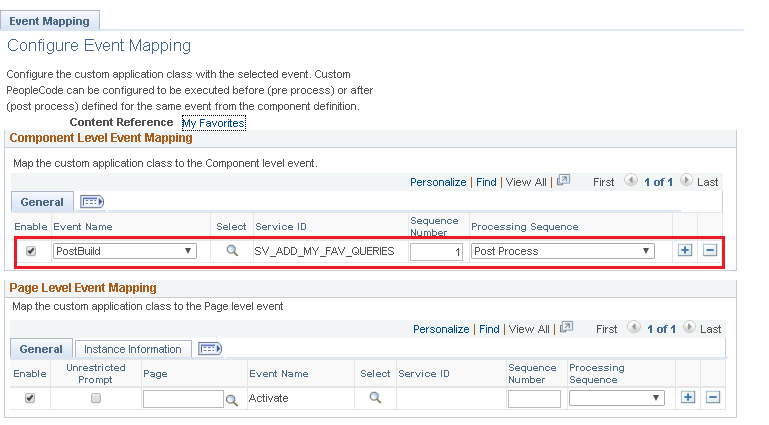
I am sure there are many ways we can achieve this programmatically. As a proof of concept, I used Event Mapping Framework to execute additional custom logic on PTNUI_MYFAV_COMP component PostBuild event. This approach will be customization free!

Why PTNUI_MYFAV_COMP component? Because it is the PeopleTools delivered component used to render the NavBar - 'Favorites' tile content. We can see the content reference PTNUI_NB_FAV that is associated with the PTNUI_MYFAV_COMP component in the screenshot below.


In the custom Event Mapping App Class - which is configured to execute as as post process to the PTNUI_MYFAV_COMP component PostBuild event, I simply appended the current user's 'Favorite Queries' to the NavBar - 'Favorites' Content Collection. We can see a demonstration of 'My Favorite Queries' displayed in the NavBar - 'Favorites' below.

Demo of solution


Implementation Details

Download App Designer Project from GitHub: https://github.com/SasankVemana/MyFavQueriesAsNavBarFavorites

Notes:
  1. This feature (implemented using Event Mapping Configuration) is a great value addition to users who frequently use PS Query. That said, all users are not alike and some may not prefer to see all the queries they stashed away in their 'My Favorite Queries' displayed under the NavBar - Favorites. For the purpose of a proof of concept, this solution is implemented for all users. But it could very easily be extended to only display the 'My Favorite Queries' if the users 'opt in'. Please consider any user experience impacts prior to implementing this solution or something similar.
  2. This solution was created using HCM 9.2 - PUM Image 29 - PeopleTools 8.57.03.
Event Mapping App Package/Class

The following Event Mapping App Package/Class contains the custom logic to display 'My Favorite Queries' in the NavBar - 'Favorites' tile content.


SV_EVENT_MAPPING_PKG.NUI.AddMyFavQueries.OnExecute

This app class is mapped to the PTNUI_MYFAV_COMP component PostBuild event. The logic in the Execute method is very similar to that of PTNUI_MYFAV_COMP component PostBuild event.

SV_EVENT_MAPPING_PKG.Utils.PSQueryAsFavorites.OnExecute

This app class is used by the Event Mapping app class (refer line 19 and 20) to append the 'My Favorite Queries' to the NavBar - Favorites Content Collection. This app class is cloned from the delivered PTNUI.NavBarContentArea.Content.MyFavorites.OnExecute app class and updated to meet this requirement.

Dummy Content Reference SV_EXEC_PSQUERY_GBL

The following content reference (SV_EXEC_PSQUERY_GBL) was created as a placeholder. This content reference is required to be able to add a link to the NavBar - Favorites Content Collection. I chose to add this CREF under Root > Reporting Tools folder. You can move this to a different Parent Folder per your standards.


This CREF is referenced in SV_EVENT_MAPPING_PKG.Utils.PSQueryAsFavorites.OnExecute (line number 30 and 31) as shown below.


Helper Function - AppendContentArea

This function is called by the custom event mapping app class (line 22) to append a Collection to NavBar Content Area. The logic in this function is cloned/borrowed from the delivered SetContentArea function in PTNUI_DOCK_REC.PTNUI_NB_ACTION.FieldFormula.


Related Content Service Definition


Event Mapping Configuration


Friday, March 22, 2019

Enable/Disable Classic Plus without Customizations

Classic Plus was introduced in PeopleTools 8.56 as a means to unify the look and feel of Classic and Fluid PeopleSoft pages from a styling point of view. If you want a quick overview of how this works, you can go to youtube and watch this fantastic video created by PeopleSoft guru, Graham Smith.

https://www.youtube.com/watch?v=Cg7JmqEkPjk

As you can see in this video, PeopleTools team as well as the Apps teams are delivering (with every new release) many components that are Classic Plus enabled. But not all Classic components are Classic Plus enabled for various reasons. In cases where Classic Plus is not enabled on a desired component, or alternatively where Classic Plus is enabled as delivered but we may want to disable it on a certain component, we will need to enable it manually via a Component property (Classic Plus Theme Selection).

In such cases where we need to manually enable/disable Classic Plus, we incur some technical debt in the form of a minor customization to the components involved which needs to be maintained in the future.

Note: Merely enabling this property may not be sufficient to Enable Classic Plus in some advanced cases. Review the following  PeopleBook for more details.

Reworking Components for Classic Plus Display

Assuming, we are not dealing with any page refactoring complexities, then we can simply enable/disable Classic Plus using a PeopleCode function!

ConfigureClassicPlusComponent

According to Doc ID 2440035.1, this is a new function in PeopleTools 8.57, although I can see that is exists in PeopleTools 8.56 as well.

Oracle's PeopleSoft PeopleTools 8.57 New Features Overview (Doc ID 2440035.1)


Based on what I am seeing in some delivered code, it appears to be available in PeopleTools 8.56.06 and higher.


Anyway, why is this exciting? Because we can simply use this function in conjunction with Event Mapping and enable/disable Classic Plus without incurring any customizations.

Event Mapping App Classes

Enable Classic Plus

Disable Classic Plus

Event Mapping - Related Content Services

PeopleTools > Portal > Related Content Service > Define Related Content Service

Enable Classic Plus Service


Disable Classic Plus Service


Enable/Disable Classic Plus using Event Mapping Configuration

Let us say, we want to enable Classic Plus on a Classic component that is not using Classic Plus as delivered. We can simply create an event mapping configuration to associate the component with the 'Enable Classic Plus Service'.

As an example, let us use PT_THM_MACROSET component which is not using Classic Plus as delivered (Navigation: PeopleTools > Portal > Branding > Theme Macro Set). As we can see in the demo below, the 'Classic Plus Theme Selection' component property is not set for PT_THM_MACROSET by default. By associating the custom event mapping code which is part of our 'Enable Classic Plus Service' (SV_ENABLE_CLASSIC_PLUS), we can enable Classic Plus on this component without any customization. We can see that behind the scenes (by calling the ConfigureClassicPlusComponent function via Event Mapping PeopleCode), the 'Classic Plus Theme Selection' component property is updated without any effect on the last updated userid/datetime which means that this change will not be marked as a customization.


Similarly, let us say, we want to disable Classic Plus on a Classic component that is already using Classic Plus as delivered. We can simply create an event mapping configuration to associate the component with the 'Disable Classic Plus Service'.

As an example, let us use PEOPLECODE_TRACE component which is using Classic Plus as delivered (Navigation: PeopleTools > Utilities > Debug > PeopleCode Trace). As we can see in the demo below, the 'Classic Plus Theme Selection' component property is already set for PEOPLECODE_TRACE by default. By associating the custom event mapping code which is part of our 'Disable Classic Plus Service' (SV_DISABLE_CLASSIC_PLUS), we can disable Classic Plus on this component without any customization. Again, we can see that behind the scenes (by calling the ConfigureClassicPlusComponent function via Event Mapping PeopleCode), the 'Classic Plus Theme Selection' component property is updated without any effect on the last updated userid/datetime which means that this change will not be marked as a customization.


Environment Details

FSCM 9.2 PUM Image 30
PeopleTools 8.57.02

Concluding Thoughts

This post is not to suggest that this approach is best practice. While enabling/disabling Classic Plus, you will need to determine what works best for your lifecycle management procedures. It is as simple as that. What works for one customer might not work for another.

Personally, the prospect of automating the enable/disable Classic Plus customization through PeopleCode is very exciting. It is the main reason why I wrote this post. Additionally, combining that with Event Mapping provides an alternative 'customization free' approach in certain cases.

Further, we can see that this function/peoplecode logic is similarly used in the delivered 'Set Classic Plus' App Engine (EOCP_SETCP) which can be found in PeopleTools 8.56.06 and higher under the following navigation.

Enterprise Components > Common Utilities > Classic Plus Setup

PeopleBooks - Classic Plus Setup Page

If this setup page already exists in the application under Enterprise Components, why not simply use that instead? Yes, we should! But this setup page is only available in certain apps like FSCM and HCM. It is not yet available in Campus Solutions.

Thursday, October 26, 2017

Event Mapping Framework - Lifecycle Management (LCM) Considerations

Jim Marion wrote an excellent blog post demystifying the pros and cons of Event Mapping Framework (EMF) in PeopleTools. One of the concerns, that he rightly points out, is the lack of lifecycle management support. Knowing the fact that this framework is new, we can expect Oracle to soon follow suit and provide EMF support in App Designer - Compare Reports (for LCM purposes) and PeopleCode Editor (for troubleshooting purposes).

While we wait for these enhancements to arrive, here is a SQL query that will find a correlation between peoplecode events in a project and the EMF metadata. The query will return all component/page/component record/component record field peoplecode events in a project (think bundle, tax update, 'get-me-current' PUM application patching, etc.) that have corresponding Event Mapping App Classes configured. This SQL will help with LCM support concerns that might be holding us back from using Event Mapping Framework!

While you are here, please take a moment to login to My Oracle Support Community and vote on these ideas:
Event Mapping Framework Ideas

GitHub Project: https://github.com/SasankVemana/EMF-LCM-Support-Helper

Sunday, February 19, 2017

Related Content/Event Mapping for Components not registered in the Portal

Related Content Framework and the latest Event Mapping Framework allow us to add services to components (and other content reference types) that are registered in the Portal Menu Structure - Structure and Content. What if we want to add related content or event mapping services to a component that is not registered in the Portal?

Question Courtesy: Lewis Thompson
Event Mapping Framework - Hello World and Quirks | Comment


E.g.:

Component 1
- Hyperlink > Transfers to Component 2
- Hyperlink > Transfers to Component 3


We can see in the above scenario, only Component 1 is registered in the Portal. From Component 1, we use FieldChange peoplecode events to transfer to Component 2 and Component 3.

Component 1:


Transfer to Component 2 - FieldChange PeopleCode:


Transfer to Component 3 - FieldChange PeopleCode:


What if we want to add a related content or event mapping service to such components (Component 2 or Component 3) that are not part of the Portal menu structure?

David Bain from Oracle recently presented an overview of PeopleTools 8.56 (which is not GA yet) via Quest (access recording here). @24:23 he talks about expanding support for Event Mapping Framework via a related content API. It is possible that an API to related content would be very handy for such scenarios! But we will have to wait and see!

In the interim, here are the steps to workaround the scenario detailed above.

Adding Related Content Service:

Register the Component to a Hidden Folder in the Portal | Structure and Content:

PeopleTools > Portal > Structure and Content


Assign Related Content to hidden Content Reference:

PeopleTools > Portal > Related Content Service > Define Related Content Service


PeopleTools > Portal > Related Content Service > Manage Related Content Service > Content References (Tab) > Assign Related Content to an Application Page (Link) > Include hidden Crefs (Option)


Adding Event Mapping Service:

Register the Component to a Hidden Folder in the Portal | Structure and Content:

PeopleTools > Portal > Structure and Content


Assign Event Mapping Service to hidden Content Reference:

PeopleTools > Portal > Related Content Service > Define Related Content Service


Application Class Implementation:


PeopleTools > Portal > Related Content Service > Manage Related Content Service > Event Mapping (Tab) > Map the event of the Application pages (Link) > Include hidden Crefs (Option)


Results: