Showing posts with label Theme Macro Set. Show all posts

Monday, October 29, 2018

PeopleTools 8.57 | Custom Banner/Company Info Configuration - Part 3

This post is the third part of a blog series on the latest 'Custom Banner/Company Info' configuration that is available via the Branding Framework in PeopleTools 8.57.

Part 1 and Part 2 detailed how we can get started with this functionality and workaround some minor bugs (which require code fixes). This post will detail how we can use the delivered macros and custom CSS to perform simple CSS overrides on the Custom Header.

Environment Used

HCM 9.2 PUM Image 27 originally on PeopleTools 8.56.09 upgraded to PeopleTools 8.57.01 (inaugural Cloud-First release). The PUM image provisioning and upgrade were administered using PeopleSoft Cloud Manager 7 running on Oracle Cloud Infrastructure - Classic.

Using Theme Macro Sets

To use the delivered macros specifically provided for the Company Info functionality, we must use a theme that uses macro sets.

Delivered Macros for Company Info functionality

In Part 1, I created a simple custom theme (CSK_THEME_FLUID) just to get started with the Company Info functionality. The custom theme was cloned from DEFAULT_THEME_FLUID.

Custom Theme from Part 1


Update Custom Theme to use Macro Set

The following custom definitions were created to allow us to utilize Theme Macro Sets.

Custom Definition
Type
Cloned From
CSK_BRAND_CLASSIC_TEMPLATE_857
Style Sheet
PT_BRAND_CLASSIC_TEMPLTE_FLUID
CSK_BRAND_FLUID_TEMPLATE_857
Style Sheet
PT_BRAND_FLUID_TEMPLATE_857
CSK_DEFAULT_MACROSET_857
Macro Set
PT_DEFAULT_MACROSET_857
The custom theme (CSK_THEME_FLUID) was then updated as follows.


More details on Theme Macro Sets can be found in the following references.

Theme Macro Sets to override Branding Elements
PeopleTools 8.57 - Defining Macro Sets and Macros

Changing the Background Color of the CompanyInfo Element

Now that we are setup to use Theme Macro Sets, we should be able to leverage the delivered macros to update some basic style properties. For example, we can use the delivered macro PT_COMPINFO_BACKGROUND to override the background color.


Demo


Consistent CSS for Hyperlinks

As we can see in the demo video above, the hyperlink display appears to be different for Fluid and Classic.

Fluid Company Info - Hyperlink


Fluid Company Info - Hyperlink Hover


Classic Company Info - Hyperlink


Classic Company Info - Hyperlink Hover


Update Custom Classic Theme Style Sheet

Since there are no delivered macros available to override the CSS for CompanyInfo hyperlinks, I updated the custom Classic Theme Style Sheet (CSK_BRAND_CLASSIC_TEMPLATE_857) which we created previously. The following CSS was added to the custom style sheet.


Demo

As we can see in the demo video below, the CompanyInfo hyperlink display in Classic and Fluid is consistent now.

Sunday, August 27, 2017

PeopleTools 8.56 - Branding Review

PeopleTools 8.56 has been out for a few months now. This is a review of what is new in the Branding Framework pertaining to the 8.56 release.

Review Environment Details:

- HCM 9.2 PUM Image 23
- PeopleTools 8.56.01

Branding Framework:

Not much has changed with the Branding Framework. I was expecting some improvements to the Theme Macro Set functionality which was introduced in 8.55. There are still some hard-coded references to images in javascript which would have been nice to move to Theme Macro Set CSS functionality. For example:


The delivered macro set, PT_DEFAULT_MACROSET_855, still contains 117 macros (same as in 8.55) with no changes in 8.56.


As you can see, there is a new Color Picker on the Theme Macro Set page which is a nice productivity enhancing feature! This Color Picker is based on HTML5 'color' input type element.

Icon Changes:

A notable change that we have already seen in demos prior to the release is the new 'Action Menu' icon. This has changed from the old 'hamburger' menu to a 'pea' (?) menu. Graham Smith thinks this is a healthy dietary change! We cannot argue with that. :)


Using Theme Macro Sets:

Since the framework has not changed, it was pretty much the same set of steps to use Theme Macro Sets to override Branding elements. One thing to note is that we definitely want to clone the 8.56 objects (style sheets, headers, themes, etc.) instead of moving objects from an 8.55 environment. This will make sure that we have the most current versions of the object in question.

We can follow the steps detailed in my previous posts describing how to use Theme Macro Sets to override Branding Elements:
PeopleTools 8.55 Branding - Theme Macro Sets - Part 1
PeopleTools 8.55 Branding - Theme Macro Sets - Part 2

One of the issues I noticed was the position of the 'Pea' icon was a little off after applying the Theme Macro Set overrides. This issue occurred only on the Classic Pages. For example:


I fixed this by adding the following a top property to the #pthdr2ActionList:after style selector which is part of the Classic Theme Style Sheet.


Using Oracle JET:

I noticed that Oracle JET version 2.1.0 is available with PeopleTools 8.56. I found that the JavaScript Injection Framework that I built using Oracle JET in 8.55, works without any issues in 8.56 as well. Only thing to note is that, due to the version change, we may need to review the requireJS configuration to make sure the javascript library paths are pointing to the correct version.

Resources:

JavaScript Injection Framework
Framework is based on my experience with Oracle JET - Part 1, Part 2, Part 3 and Part 4
GitHub Project: https://github.com/SasankVemana/PeopleTools-JavaScript-Injection-Framework

Using Classic Plus:

I wanted to test the delivered Classic Plus pages that were available in this PUM image. But when I navigated to the Process Monitor page - which is in the list of PeopleTools Components delivered as Classic Plus - I was still seeing the good old Classic.


To activate Classic Plus, we must update the Branding System Options to use "Fluid like theme for Classic" as the "Theme Style Type". This is the system level setting that enables "Classic Plus".


Process Monitor after setting 'Theme Style Type'.


More information on Classic Plus:
PeopleBooks - Classic Plus

Related Branding Posts:

Fluid UI - New Window Feature - Workaround
Using Different Branding Themes for Different Portals
Using the Logo as a Hyperlink
Fluid Global Search - Setting Focus on the Search Box
Adding Userid to 'Sign out' Action Menu Item Label 

Saturday, June 24, 2017

PeopleTools 8.55+ Branding: Using the Logo as a Hyperlink

It is a common practice in most social media and big brand websites to use the webpage logo as a hyperlink for navigation. This usually provides a mechanism for the users to 'return to home' in most cases. Here is a very interesting discussion on how this standard/convention originated:
https://ux.stackexchange.com/questions/81727/why-is-it-standard-for-a-website-logo-to-navigate-to-the-home-page

In the past, I have worked on requirements where we wanted the logo of a PeopleSoft application to hyperlink to the enterprise portal (which may or may not be PeopleSoft based). To generalize this requirement, let us assume that we want to hyperlink the PeopleSoft Logo to a configured URL (which could be any URL of our choice).

This post assumes that:
My environment details:
- CS 9.2 PUM Image 4
- PeopleTools 8.55.12

Adding a Hyperlink to the Logo on the Fluid Homepage:

The first step we need to do is to identify the HTML elements (divs, images, etc.) that are involved in generating the logo. It is very easy to identify this using the browser's developer tools (inspect element option).


As we can see, the logo image is added to the div (with the style class nuihdr_logo) as a pseudo-element using CSS. Here is a javascript object that selects this div (using the class selector) and adds a click event which redirects to a URL defined in a URL definition (CSK_LOGO_URL). This works well because the div element is completely enclosed within the image (psuedo-element) in terms of position on the webpage and as a result does not have any overflow issues. We will see how this can be an issue as we extent this functionality to the Classic Homepage (next section).

JavaScript Object: CSK_LOGO_URL_JS


I used the javascript injection framework to load this javascript object.


URL Definition Configuration:


Results:

Here is a demo of the Fluid Homepage Logo hyperlink.


Adding a Hyperlink to the Logo on the Classic Homepage:

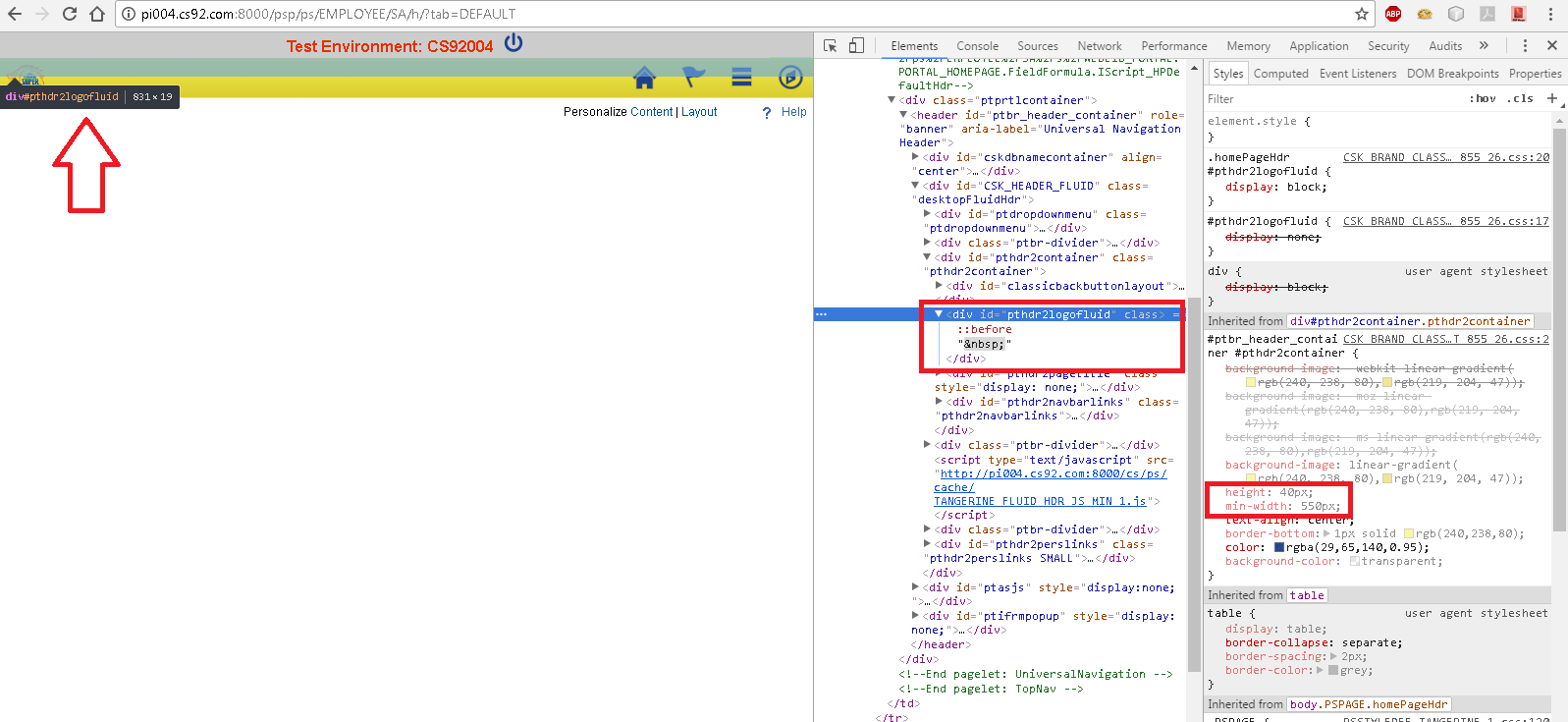
In this section, we will extent the functionality discussed above to the logo on the Classic Homepage. Let us use the same approach and try to identify the HTML elements (divs, images, etc.) that are involved in generating the logo.


As we can see, the div element (with id pthdr2logofluid) spans the entire width of the page whereas the logo image which is added as a pseudo-element using css obviously does not. So, if we were to use the previous approach and add a click event function for this div (id pthdr2logofluid), then the entire div (which spans the width of the page) would become a hyperlink.

It is not very easy to selectively fire the click event function only on the pseudo element because pseudo elements are not part of the DOM and therefore cannot be manipulated using javascript. After a long search where I almost gave up, I found the following discussion where there was a solution for a similar requirement.

Refer: https://stackoverflow.com/questions/7478336/only-detect-click-event-on-pseudo-element
JSFiddle: http://jsfiddle.net/ZWw3Z/70/

We can take this idea and apply it to the Classic Homepage Logo by updating the javascript as follows:

Updated JavaScript Object: CSK_LOGO_URL_JS


The updated javascript code selects the div element (with id pthdr2logofluid) and sets all pointer-events to none using css. The javascript also has the click event function to redirect users to the URL configured in the URL definition (CSK_LOGO_URL).

Finally, the Classic stylesheet (CSK_BRAND_CLASSIC_TEMPLTE_FL) which is part of the Branding Theme in my environment which uses Theme Macro Set (click here for more details), was updated to set the cursor and pointer-events properties for the pseudo-element.


Results:

Here is a demo of the Classic Homepage Logo hyperlink.


Tuesday, August 23, 2016

Branding 8.54+ - Role Based Theme Assignment/Override

In the past, I have written about Branding PeopleSoft applications using themes (and even theme macro sets in PeopleTools 8.55). In this post, I want to quickly show how we can assign different themes to different users based on roles/permission lists.

Using the steps detailed in my previous post - PeopleTools 8.55 - Branding, I created two different themes (Red and Blue).

Note:
Although, I am using PeopleTools 8.55, the same - User Attribute Based Theme Assignments - can be done using PeopleTools 8.54 themes as well.

The two themes have the following look and feel. I only updated the background color of the header to keep the themes simple. The idea is to demonstrate role based theme assignment/override. You could follow my other branding posts and make further theme changes as per your requirements.

Blue Theme:


Red Theme:


Environment Details: CS 9.2 PUM Image 2, PeopleTools 8.55.06

Assigning Branding Themes based on User Roles:

Branding System Options:

PeopleTools > Portal > Branding > Branding System Options

I left this as default for the sake of this proof of concept.


Assign Branding Themes:

PeopleTools > Portal > Branding > Assign Branding Themes


Again, for the purposes of demonstration and simplicity, I am using the delivered DEFAULT_THEME_FLUID theme as my default. Notice the 'Effective Date'? This means that we could potentially have certain themes only active for a specific period of time. For example, creating a football based theme specifically for students that is only effective during game week?


Further, you can see that I set the priority of the Red Theme higher (100) than the Blue Theme (200). This means that if a user has both CSK_RED_THM_ROLE and CSK_BLUE_THM_ROLE, the system would prioritize CSK_RED_THEME_FLUID as the user's theme.

Results:

User without CSK_RED_THM_ROLE or CSK_BLUE_THM_ROLE (Default):

This is a scenario where the user does not have any of the roles defined in the 'User Attribute Based Theme Assignments' section. The user simply gets the 'Default Theme'.


User with access to CSK_BLUE_THM_ROLE:

This is a scenario where the user has the role CSK_BLUE_THM_ROLE but not CSK_RED_THM_ROLE. So, the system assigns the CSK_BLUE_THEME_FLUID theme for this user.


User with access to both CSK_RED_THM_ROLE and CSK_BLUE_THM_ROLE:

This is a scenario where the user has both CSK_RED_THM_ROLE and CSK_BLUE_THM_ROLE. The system uses the priority configuration and assigns the CSK_RED_THEME_FLUID.


PeopleBooks Reference:
PeopleTools 8.54
PeopleTools 8.55

Wednesday, April 20, 2016

PeopleTools 8.55.x - Branding - Part III - Custom Macros and More

In my previous blog posts, we saw how we can brand PeopleSoft applications which are on PeopleTools 8.55 using the new Theme Macro Sets functionality (Part I and Part II). The Theme Macro Sets provides a great way to override targeted styles (e.g.: Header Logo, Icon images, background colors, etc.) using online configuration. The delivered Them Macro Set contains 177 macros which targets specific styles for some common Branding tasks.

Creating Custom Macros:

The concept and functionality of the Macro Set are great, but what if the 177 macros that are available do not meet our requirements? In Part II, I demonstrated how we can fall back to using the Theme - Fluid Global Override Style Sheet under such circumstances. In this section, I will detail how we can still bring those custom style sheet overrides into the Theme Macro Set as custom macros. Once we create the macros, we don't need to update the style sheet anymore. All we need to do is update the macros if there are any further changes (I guess making it a little user friendly depending on who is making the changes). This is particularly useful for customers who have a more dynamic branding which changes frequently depending on the time of the year vs being static after implementation.

Macros in Theme Macro Sets are nothing but variables used in the Theme - Fluid Global Override Style Sheet which are substituted at runtime.

Going back to my example in Part II, we used the following styles in the Theme - Fluid Global Override Style Sheet for changing the Dot Styling on the Fluid Landing Page Footer:

.lpfooter .dot.on {
  background: #EEEB4D;
}
.lpfooter .dot {
  background: #E8E29E;
  border: 2px solid #1d418c;
}

Let us re-write the above styles using custom variables (macros).

NavBar > Navigator > PeopleTools > Portal > Branding > Branding Objects

Edit the custom Fluid - Global Override Style Sheet (CSK_BRAND_FLUID_TEMPLATE) and update the styles as follows:

.lpfooter .dot.on {
  %CSK_FOOTER_DOT_ON_CSS;
}
.lpfooter .dot {
  %CSK_FOOTER_DOT_CSS;
}


Now, let us add these macros (variables) to our Theme Macro Set:

NavBar > Navigator > PeopleTools > Portal > Branding > Theme Macro Set

Select the custom Theme Macro Set and add the custom variables in the 'Macro List' grid:


Results:


Similarly, we can add other Fluid Style Sheet overrides as custom macro definitions if necessary.

Moving along, the rest of this blog details some advanced branding tasks which can be done in PT 8.55 similar to PT 8.54. I am posting links for those items here for continuity.

Creating an environment specific header for Non-Production databases:

Fluid Housekeeping Steps: Fluid Branding - 8.54 - Part 5B
Task steps: Fluid Branding - 8.54 - Part 5C

We will notice that the above steps would only work for the "Fluid" pages. To make it work on "Classic" pages, we need to perform some additional steps.

Step 1: Update the javascript to modify the jQuery selectors

// Display Database Name using jQuery once the document is ready;

var $jq1 = jQuery.noConflict();

$jq1(document).ready(function(){

   // Make sure we are only adding the div once;
   if ( $jq1("#cskdbnamecontainer").length === 0 ) {

      // Add div to display DB Name;
      $jq1( "#PT_HEADER, #ptbr_header_container").prepend( "<div id='cskdbnamecontainer' align='center'><span id='cskdbname'>Test Environment: %dbname</span><a href='#' id='cskdbnamehide'>Hide</a></div>" );

      // Add jQuery to hide the DB Name when the 'Hide' link is clicked;
      $jq1("#cskdbnamehide").click(function(){
         $jq1("#cskdbnamecontainer").hide();
      });

   }

});


You can see that I added an additional selector (#ptbr_header_container) to the jQuery so that the contained javascript code executes for Classic as well.

Step 2: Inject custom styles into Classic - Theme Style Sheet

NavBar > Navigator > PeopleTools > Portal > Branding > Branding Objects

Append the following styles to CSK_BRAND_CLASSIC_TEMPL_FLUID


Custom styles for reference:

/* Fluid - Display DBName for non-Prod environments */
#cskdbnamecontainer {
   height: 26px; 
   background-color: rgb(204,204,204);
}
#cskdbname {
   color: rgba(229,47,0,1);
   line-height: 26px;
   font-weight: bold;
   padding-right: 10px;
}


Step 3: Inject the custom javascript into Classic using Branding System Options

NavBar > Navigator > PeopleTools > Portal > Branding > Branding System Options


Results:


Adding Custom Links to Actions List Menu:

Fluid  Branding - 8.54 - Part 5C

Again, we will notice that the above steps would only work for the "Fluid" pages. In order to add custom links on "Classic" pages, we need to perform some additional steps to update the header definition (CSK_HEADER_FLUID).

NavBar > Navigator > PeopleTools > Portal > Branding > Define Headers and Footers


Note: The reason I am using a Static URL as the means to add the custom URL is because the URL object option does not seem to substitute the URL correctly. It appears to be a bug in 8.55.

Results:


Overriding the Favorite Icon:

Fluid Branding - 8.54 - Part 5C

Again, this will only work for "Fluid" pages.

Here are the steps to create a Favorite Icon for Classic Pages:

Step 1: Update custom javascript - CSK_FL_IR_JS

NavBar > Navigator > PeopleTools > Portal > Branding > Branding Objects

Update CSK_FL_IR_JS javascript object as follows:


Javascript for reference:

// Get Image URL for CSK_LOGO (FavIcon);
document.write(unescape("%3Cscript src='/psc/" + site + "/EMPLOYEE/EMPL/s/WEBLIB_FL_CSK.ISCRIPT1.FieldFormula.IScript_Set_Image_URL_Variable?var=cskFavIcon&img=CSK_LOGO_FAVICON' type='text/javascript'%3E%3C/script%3E"));

var $jq = jQuery.noConflict();
$jq(document).ready(function(){

  // If Classic;
  if ( $jq("#ptbr_header_container").length > 0) {

     // create div for favIcon
     var favIcon = document.createElement("LINK");

     // set attributes and innerHTML
     favIcon.setAttribute("rel","shortcut icon");
     favIcon.setAttribute("href", cskFavIcon);

     // insert favIcon div in the head element
     document.getElementsByTagName('head')[0].appendChild(favIcon);

  } else {

 
     // Replace Browser Favorite Icon(s);
     $jq('head link[href*=LOGO_FAVICON]').attr('href', cskFavIcon);
 
  }

});


Results:


Overriding the "Processing" Icon:

PT_PROCESSING_FMODE:


Fluid Branding - 8.54 - Part 5D