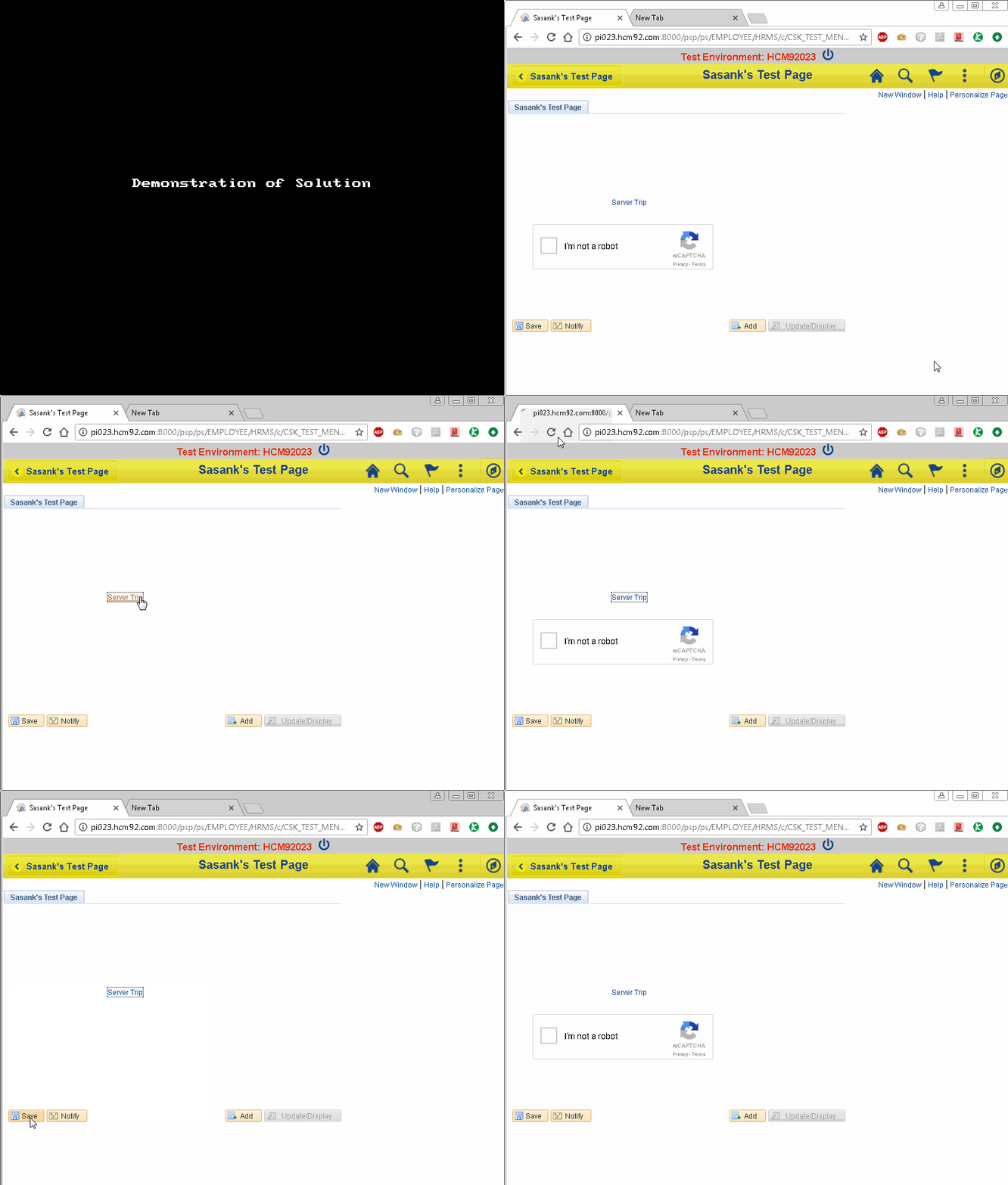
This post is based on a great discussion concerning security on the
OTN forums.
The requirement was to solve the problem of bots/hacker websites hijacking users to their malicious locations (masquerading the legitimate PeopleSoft site), scraping the credentials from the users and then posting the data into the PeopleSoft signin page in a typical phishing attack scenario.
If you read through the discussion, you will notice some very valid questions, concerns and suggestions provided by Greg Kelly from Oracle and others around how to ensure that such phishing emails and attacks can be prevented.
Outside of that discussion, traditionally
CAPTCHA has been used in several websites to prevent bot attacks. Now Google's
reCAPTCHA project is being used more commonly since its inception in 2009. The latest version (
no CAPTCHA reCAPTCHA) has significant user experience improvements. Additionally, the reCAPTCHA API version 2.0 is now a RESTful API which makes server side validation a lot easier. Another great incentive to use Google's no CAPTCHA reCAPTCHA is the fact that it is FREE!
Before going down the path of implementing reCAPTCHA, please consider accessibility and user experience implications and test accordingly. Click here for an article that talks about accessibility features of reCAPTCHA.
Here are the steps to implement Google reCAPTCHA API version 2.0 in PeopleSoft.
Note: I am currently using a HCM 9.2 PUM Image 12 - PeopleTools 8.54.08.
Reference Document:
Developer's Guide
Step 1: Sign up for an API key pair
Please click
here to sign up on the Goolge reCAPTCHA website. Once you sign up for an API key pair to your site, you will be provided with two keys - secret key and site key.
Step 2: Client side integration
In this case, let us assume that we want to add reCAPTCHA to the PeopleSoft signin page. So the signin page will be our client side content where we would add the reCAPTCHA code.
Here are the instructions from the Google reCAPTCHA documentation:
Let us add the above code snippet to the PeopleSoft signin page (signin.html).
Note: We can locate the signin.html file in the following directory on the web server.
<PIA_HOME>/webserv/<DOMAIN>/applications/peoplesoft/PORTAL.war/WEB-INF/psftdocs/<site_name>/
Add the following script inclusion code just before </HEAD> as shown:
<!-- CSK reCAPTCHA - Start -->
<script
src='https://www.google.com/recaptcha/api.js'></script>
<!-- CSK reCAPTCHA - End -->
Add the following div (reCAPTCHA) in an appropriate location on the content page. I chose to add it right before the submit button which could be referenced by <input name="Submit" type="submit" title="<%=137%>" class="ps-button" value="<%=137%>">.
<!-- CSK reCAPTCHA - Start -->
<div
class="g-recaptcha" data-sitekey="<ENTER_YOUR_SITE_KEY_HERE>"
align="center"></div>
<br/>
<!-- CSK reCAPTCHA - End -->
Note: If you are on PeopleTools 8.54 then you might also want to perform the same customizations to signin_fmode.html file as well. This is due to a known issue that will be fixed in PeopleTools 8.55. Refer: E-FLUID - Fluid HomePage Sign Off Link Calls fmode=1 in URL, Skips Custom signout.html Page (Doc ID 2001761.1).
Please bounce and clear the cache on your web server domains. Let us now see the reCAPTCHA plugin in action on the client side.
We are not done yet! Once verified, the reCAPTCHA integration would additionally add a string with the name "g-recaptcha-response" to the payload when the user submits (form post). This string would be a key that is generated specifically for our site. The string needs to be validated on the server side which we will explore in the next section.
Step 3: Server side integration/validation
This is the step where we verify the string provided by reCAPTCHA for validity by making a REST API call. Instructions from Google reCAPTCHA documentation.
For more details: Refer
API documentation.
In this case, since we are trying to validate the reCAPTCHA response string provided by the PeopleSoft signin page, the best place to add the validation logic would be in the SignOn PeopleCode.
Let us now add a new row/entry in the sequence of Signon PeopleCode events as shown in the following screenshot. I am referencing a custom function name which I will explain shortly.
Record: CSK_RECAPTCHA
Field Name: FUNCLIB
Event Name: FieldFormula
Function Name: CSK_RECAPTCHA_CHECK
Note: After making any changes to Signon PeopleCode we must bounce the app servers for them to take effect.
Now let us see how to write some custom code to validate the reCAPTCHA response string. For reference, I pasted the entire peoplecode at the very end of this post.
Click on image to zoom in!
Note: In this case, I am using Apache Commons HttpClient Java Libraries to make the REST API call. Please refer to my previous blog posts that have more details on this topic (
Part I and
Part II).
Details on custom function validate_reCAPTCHA_JSON is provided below. For the purposes of JSON parsing, I am using a server side scripting technique described by Jim Marion in his blog post.
Click on image to zoom in!
Message Catalog Entry that contains the JSON Parsing Script:
Script for reference:
var result = (function() {
var json = JSON.parse(json_string);
if (json.success) {
return "true";
} else {
return "false";
}
}());
This completes our server side integration/validation. Now we are relatively free of bot attacks! :)
Note: The same feature can be applied to any content page within the PeopleSoft application as well. If not easier, the effort should be the same as what we just went through in this post.
PeopleCode Functions for reference:
Function validate_reCAPTCHA_JSON(&json As string) Returns boolean;
Local string &success;
/* Instantiate ScriptEngine Manager and Engine objects */
Local JavaObject &manager = CreateJavaObject("javax.script.ScriptEngineManager");
Local JavaObject &engine = &manager.getEngineByName("JavaScript");
/* Pass JSON string */
&engine.put("json_string", &json);
/* Get JSON Parse JavaScript from Message Catalog */
Local string &jsFunction = MsgGetExplainText(26000, 1, "NONE");
If &jsFunction <> "NONE" Then
&engine.eval(&jsFunction);
&success = &engine.get("result").toString();
End-If;
If Upper(&success) = "TRUE" Then
Return True;
Else
Return False;
End-If;
End-Function;
Function CSK_RECAPTCHA_CHECK()
/* Get reCaptcha parameter from the Request */
Local string &reCAPTCHA = %Request.GetParameter("g-recaptcha-response");
If &reCAPTCHA = "" Then
/* Fail Authentication */
SetAuthenticationResult( False, %SignonUserId, "", False);
Else
/* Do further validation if required. Refer: https://developers.google.com/recaptcha/docs/verify */
/* Post user's reCAPTCHA response and server's private key to API: https://www.google.com/recaptcha/api/siteverify */
try
/* Using Apache HttpClient for REST - Post Method */
Local JavaObject &jHttp, &jMethod, &filePart, &partArray, &mPartReqEntity;
/* Initialize HttpClient and set parameters */
&jHttp = CreateJavaObject("org.apache.commons.httpclient.HttpClient");
&jHttp.getHttpConnectionManager().getParams().setConnectionTimeout(20000);
/* Initialize PostMethod */
/* !!!!!! Avoid hardcoding !!!!!!!! Replace below URL with a URL definition that is configurable. */
Local string &sURL = "https://www.google.com/recaptcha/api/siteverify";
&jMethod = CreateJavaObject("org.apache.commons.httpclient.methods.PostMethod", &sURL);
&jMethod.setFollowRedirects( False);
/* Add Multi-Part Message - Start */
/* Create String Part - secret */
&secretPart = CreateJavaObject("org.apache.commons.httpclient.methods.multipart.StringPart", "secret", "<ENTER_YOUR_SECRET_KEY_HERE>");
/* Create String Part - response */
&responsePart = CreateJavaObject("org.apache.commons.httpclient.methods.multipart.StringPart", "response", &reCAPTCHA);
/* Add Parts to Part Array */
&partArray = CreateJavaObject("org.apache.commons.httpclient.methods.multipart.Part[]", &secretPart, &responsePart);
/* Create Multi-Part Request Entity */
&mPartReqEntity = CreateJavaObject("org.apache.commons.httpclient.methods.multipart.MultipartRequestEntity", &partArray, &jMethod.getParams());
/* Add Multi-Part Request Entity to the Post Method */
&jMethod.setRequestEntity(&mPartReqEntity);
/* Add Multi-Part Message - End */
/* Invoke PostMethod */
Local integer &return = &jHttp.executeMethod(&jMethod);
Local string &responseBody = &jMethod.getResponseBodyAsString();
If (validate_reCAPTCHA_JSON(&responseBody)) Then
/* reCaptcha success: allow user */
SetAuthenticationResult( True, %SignonUserId, "", False);
Else
/* reCaptcha failure: deny */
SetAuthenticationResult( False, %SignonUserId, "", False);
End-If;
catch Exception &ex
/* Unknown Exception */
SetAuthenticationResult( False, %SignonUserId, "", False);
end-try;
End-If;
End-Function;