Now that we have the PeopleSoft PUM Image (DEMO environment) up and running on the Oracle Compute Cloud, we can move on and dive deeper into more interesting topics! This post will detail how we can set up SSH access and connect to the PUM Image via PuTTY and WinSCP to perform PSADMIN activities such as configuring, bouncing and clearing cache on the app/web/process scheduler servers.
Step 1: Create Security List for SSH access and add to the instance
Create Security List:
Oracle Compute Cloud Service console > Network tab > Security Lists > Create Security List


Create Security Rule:
Oracle Compute Cloud Service console > Network tab > Security Rules > Create Security Rules

Add Security List to Instance:
Oracle Compute Cloud Service console > Instances tab > Instances > View > Under "Security Lists" > Add to Security List
In my example, the security list that I added is called 'allow_admin_clients'.


Step 2: Configuring PuTTY and logging in to the instance using SSH
After creating the Security List and adding the instance it (step 1), we are now ready to proceed with the steps detailed in the tutorial:
- Logging in to your instance using SSH
The steps detailed in this section of the tutorial are straight forward. I was able to use the "Logging in from a Windows System" instructions and connect to my PUM image (running on OPC - Oracle Public Cloud) via SSH using PuTTY running on my on premise workstation.

Note: The first time we successfully login via PuTTY as opc user, we will be prompted to change the default password (OracleCloud). Make sure that you change and notate the new password!
Refer: Changing the default password for opc user
Step 3: Configuring WinSCP and logging in to the instance using SCP
Before I proceed with demonstrating how to access PSADMIN using PuTTY, I want to detail how to similarly configure WinSCP to connect to the instance running on OPC. I use WinSCP heavily for various activities such as navigating to and deleting web server cache folder, viewing db/app/web server log files, loading custom javascript libraries to the web server, loading custom jar files to the app/web servers and so on.
Open WinSCP > New Site
- File protocol: SCP
- Host name: Enter the public IP of your instance
- Port number: 22
- User name: opc
Advanced Site Settings > SSH > Authentication:
- Private key file: Point to the location where you stored your SSH private key (.ppk)


Save the configuration and login. You will be prompted to enter your SSH Key passphrase.


Step 4: Accessing PSADMIN via PuTTY
We already saw in step 2, how we could connect to the instance via PuTTY. This involves using the opc user provided to us as part of the tutorial instructions.

In order to access, PSADMIN it is best if we use psadm2 (one of the default users created in PUM images). Here are the commands that allow us to switch from opc user to psadm2 user and invoke PSADMIN.
Command: sudo -s
Description: Switch to root
Command: su psadm2
Description: Switch to psadm2
Command: cd $PS_HOME/appserv
Description: Change directory to appserv folder under $PS_HOME
Command: ./psadmin
Description: Invoke PSADMIN

Once we are in PSADMIN as psadm2 user, the steps to bounce and purge cache on the app/web/process scheduler servers are the same as detailed in one of my older posts.
Refer: PeopleSoft PUM Image - Virtual Machine - How to access PSADMIN
We are now able to access PSADMIN of our demo instance (PUM image running on OPC) via PuTTY (SSH) from an on premise workstation!
Step 1: Create Security List for SSH access and add to the instance
Create Security List:
Oracle Compute Cloud Service console > Network tab > Security Lists > Create Security List


Create Security Rule:
Oracle Compute Cloud Service console > Network tab > Security Rules > Create Security Rules

Add Security List to Instance:
Oracle Compute Cloud Service console > Instances tab > Instances > View > Under "Security Lists" > Add to Security List
In my example, the security list that I added is called 'allow_admin_clients'.


Step 2: Configuring PuTTY and logging in to the instance using SSH
After creating the Security List and adding the instance it (step 1), we are now ready to proceed with the steps detailed in the tutorial:
- Logging in to your instance using SSH
The steps detailed in this section of the tutorial are straight forward. I was able to use the "Logging in from a Windows System" instructions and connect to my PUM image (running on OPC - Oracle Public Cloud) via SSH using PuTTY running on my on premise workstation.

Note: The first time we successfully login via PuTTY as opc user, we will be prompted to change the default password (OracleCloud). Make sure that you change and notate the new password!
Refer: Changing the default password for opc user
Step 3: Configuring WinSCP and logging in to the instance using SCP
Before I proceed with demonstrating how to access PSADMIN using PuTTY, I want to detail how to similarly configure WinSCP to connect to the instance running on OPC. I use WinSCP heavily for various activities such as navigating to and deleting web server cache folder, viewing db/app/web server log files, loading custom javascript libraries to the web server, loading custom jar files to the app/web servers and so on.
Open WinSCP > New Site
- File protocol: SCP
- Host name: Enter the public IP of your instance
- Port number: 22
- User name: opc
Advanced Site Settings > SSH > Authentication:
- Private key file: Point to the location where you stored your SSH private key (.ppk)


Save the configuration and login. You will be prompted to enter your SSH Key passphrase.


Step 4: Accessing PSADMIN via PuTTY
We already saw in step 2, how we could connect to the instance via PuTTY. This involves using the opc user provided to us as part of the tutorial instructions.
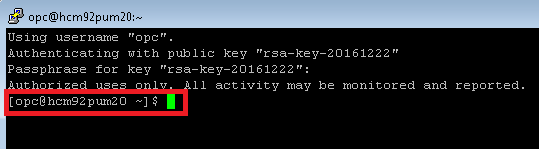
In order to access, PSADMIN it is best if we use psadm2 (one of the default users created in PUM images). Here are the commands that allow us to switch from opc user to psadm2 user and invoke PSADMIN.
Command: sudo -s
Description: Switch to root
Command: su psadm2
Description: Switch to psadm2
Command: cd $PS_HOME/appserv
Description: Change directory to appserv folder under $PS_HOME
Command: ./psadmin
Description: Invoke PSADMIN

Once we are in PSADMIN as psadm2 user, the steps to bounce and purge cache on the app/web/process scheduler servers are the same as detailed in one of my older posts.
Refer: PeopleSoft PUM Image - Virtual Machine - How to access PSADMIN
We are now able to access PSADMIN of our demo instance (PUM image running on OPC) via PuTTY (SSH) from an on premise workstation!


